The new ClipMerge editor gives you more control over a slideshow from the first photo to the final download. You can put a caption on a single clip, try a few kinds of photo motion together, and prepare different layouts of the same video in one export. You can try it now on the ClipMerge homepage.
Pick an occasion, then try a style
Start with an occasion template such as Birthday, Wedding, or Funeral or memorial. Templates give the project its cards, wording, and visual theme. Slideshow styles control how the photos and clips appear as the video plays. Try Mosaic Flip for a wall of images that turns in waves, or Film Strip for a rolling row that brings each shot forward.
The style cards use the stock photos for your chosen template. Birthday previews might show cake and balloons, while the memorial previews might show a lake, a candle, and a dove. The cards begin with different shots so you can see how the styles work with more than one image. You can also add these stock pictures to your own timeline when you need an opening image or a pause between chapters.
Give individual clips their own captions
Select Caption on a photo or video to write text for that clip. Drag the text box to move it, then drag its corner or use the width slider to resize it. The caption moves with the clip when you rearrange the timeline. That makes it easy to change the order of a travel recap without putting a place name over the wrong footage.
Use a short caption when the detail belongs to one shot, such as a date, a location, or the name of the person in frame. Use the layout step’s text or photo overlay for something you want to keep across the media slides, such as the event name or a small logo. The project preview lets you check both together before export.
Mix photo motion and audition music
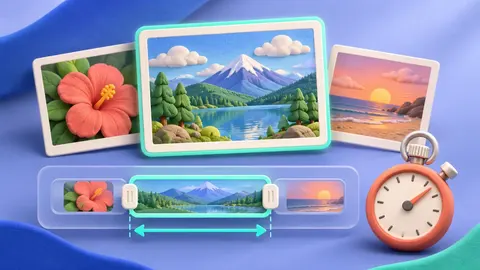
You can check several photo motions in the same project. With In sequence, the motions repeat in the order you checked them. For example, check Still, Zoom in, and Pan left to move gently from a group portrait to a close-up and then across a wide photo. Random shuffles the checked choices while keeping the assignment consistent between the project preview and the finished video. Video clips keep their own movement and do not take a turn in the photo sequence.
The Music step lists the built-in tracks for your template. Play a preview to hear a track, then choose Use song to add it. The step shows the soundtrack currently in the project, along with an option to upload your own audio. Once the music is set, watch the project preview from the start to see whether the timing suits the pictures.
Export one project in several layouts
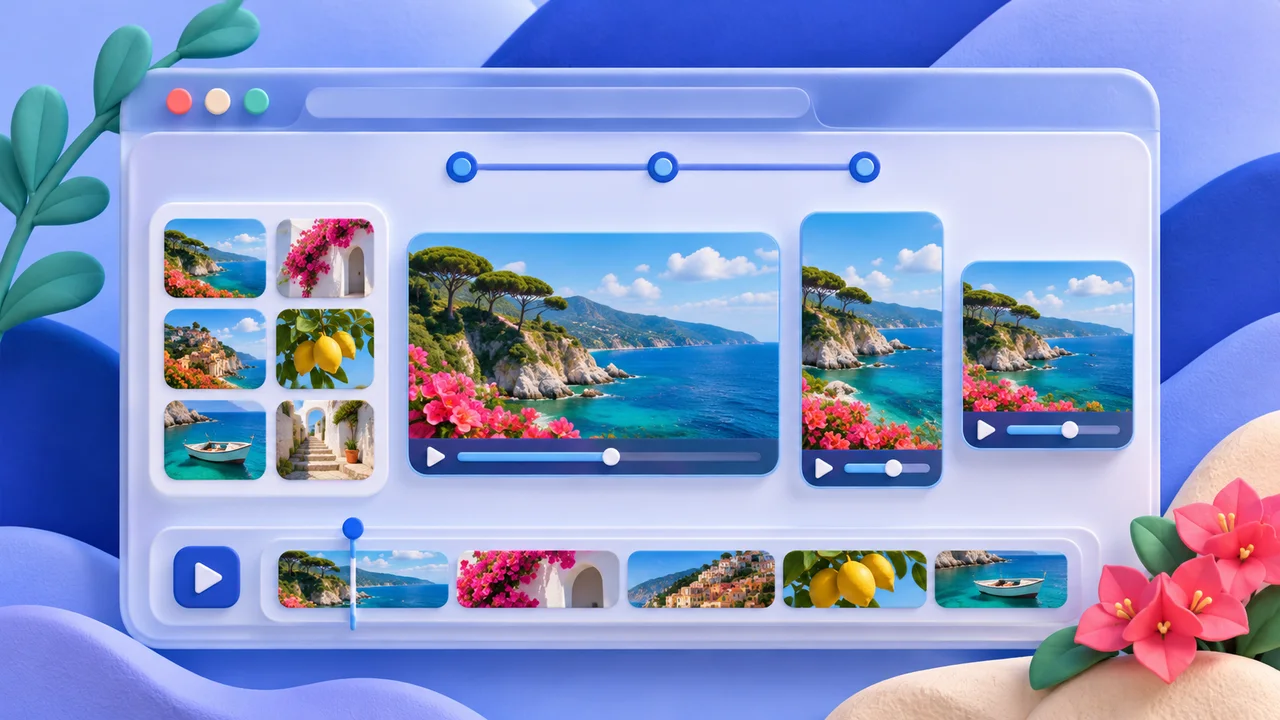
Check the layouts you need before you export. Landscape at 16:9 works for a TV or a projector. Portrait at 9:16 fits a full-screen phone video. Square at 1:1 is another option for a smaller social post. You can view a preview in each layout to see where captions, overlays, and framed photos land.
When you export several layouts, you can preview each finished MP4 and download it separately. You can also collect them in a single ZIP. For example, finish a birthday slideshow once, send a landscape copy to the person running the party, and share a portrait copy in the family chat.
Keep the editable project
Download a project ZIP when you want to return to the edit or move it to another browser. You can also save the project to your account. Keep a finished MP4 for playback and a project copy for changes such as adding a last-minute photo or adjusting the caption layout. Start a project in the ClipMerge editor.