Merge MP4 files into one video
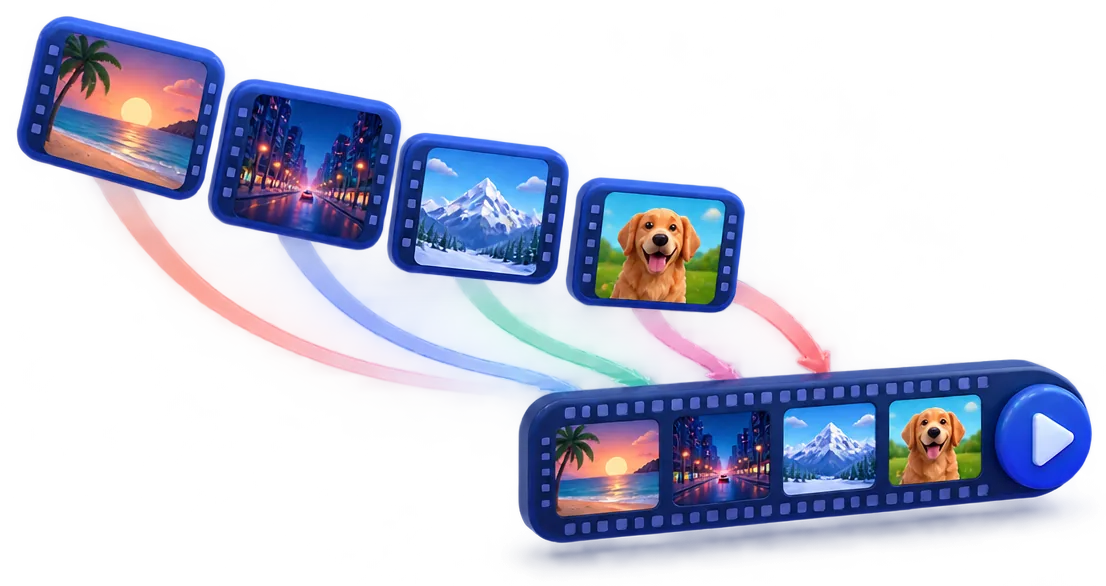
You have a few clips and you want one file. Drop them in, put them in order and download a single MP4, without installing or learning a video editor.
- Clips from any phone or camera
- Nothing gets stretched
- Free, no sign-up
Your account is ready. Add your name whenever you like.
Choose a template
Use Plain merge or pick a slideshow template for title cards, soft fades and a song.
Slideshow preview
Add media
Drop your MP4 files here
or paste a screenshot (⌘V on Mac, Ctrl+V on Windows)
Almost any video or photo: MP4, MOV, AVI, WMV, MKV, MTS, HEIC, JPG, PNG and more
Stock photos
Choose a photo to add it to your video.
Arrange your clips 0
Drag across clips to select. Drag a selected thumbnail to move the group. Tap clips to select. Hold and drag a selected thumbnail to move the group.
Add files or choose stock photos in Step 2 to arrange them here.
Music
Choose a slideshow template to add music.
Customize look
Optional: slideshow style, transitions, text, overlays and effects. Leave it closed to keep the template's look.
Slideshow style
Choose how your photos and clips appear in the video.
Transitions between clips
Effects
Preview
Add photos or clips to see a preview.
Your video is ready
It's been downloaded to your device.
Your video
After you export, you can play and download your video here.
Project backup
Joining two clips shouldn't take an hour
The usual ways of combining videos are built for much bigger jobs.
A whole video editor for a one-minute job
Installing an editor, starting a project and lining clips up on a timeline is a lot of work just to play clips one after another.
Here it's drop, drag and merge. There's nothing to set up.
Waiting for uploads and server queues
Many online tools make you upload every clip first, then wait while their server does the work.
ClipMerge merges on your own device, so it can start as soon as your clips are added.
Clips of different shapes get squashed
Put a vertical phone clip next to a landscape camera clip and one of them often ends up stretched.
Every clip keeps its shape: one that doesn't match the first clip gets black bars instead.
How to merge MP4 files
Add your MP4 files
Drop them on the box above, or press Choose files and select several at once.
Drag them into order
The video plays from top to bottom. Drag a clip to move it, or remove one you don't need.
Merge and download
Press Merge clips. The MP4 downloads when it's done, and you can watch it right on the page.
Good to know
- The first clip sets the shape: start with a landscape clip for a landscape video, or a vertical one for Reels, Shorts and TikTok.
- The merged video is as tall as your smallest clip, so leave out a tiny clip if you want the sharpest result.
- Sound from every clip is kept. Clips without sound get silence, so everything after them stays in sync.
More ways to use ClipMerge
Questions
Will merging lower the quality?
ClipMerge encodes the merged video at a high quality setting, as tall as your smallest clip. If your clips are all the same size, the video keeps that size. If one is much smaller, the whole video comes out at its size, so leave it out for the sharpest result.
Can I mix MP4 with other formats?
Yes. MOV, MKV, WebM, AVI and photos can go in the same video. Files your browser can't read are converted on your device first: see AVI and WMV files.
Is there a file size limit?
Not for merging: your browser reads the files straight from your device. Files over 500 MB still merge, but aren't saved to My videos.
Is ClipMerge free?
Yes. Without an account you can use Plain merge to combine up to 4 clips of up to 30 seconds each, plus up to 10 photos, into each video, and a free account raises that to 16 clips of 60 seconds, plus 60 photos. You can choose whether to include the ClipMerge.com watermark. ClipMerge Pro unlocks all slideshow templates and longer clips with one-time passes starting at 15 days.
Do I need an account?
No, you can merge without one. A free account (just an email and a password) lets you merge more and longer clips, and keeps the clips and photos you add in My videos, so you can save projects to come back to. Finished videos download straight to your device. Pro needs an account too, so your Pro time follows you to any device.
Is Pro a subscription?
No. Pro passes are one-time payments through PayPal for 15 days, one year, or lifetime access, and nothing renews by itself.
Which browsers work?
Recent versions of Chrome, Edge, Safari and Firefox, on computers, phones and tablets. Merging uses your device's video encoder, so it's quickest on a computer.
What happens to my files?
Merging happens in your browser, and finished videos download straight to your device. Copies of the clips and photos you add stay in My videos for 30 days on Free or one year on Pro, and we email account holders 10 days before they expire. Files from visitors without an account are removed after 30 days.