Combine screen recordings into one video
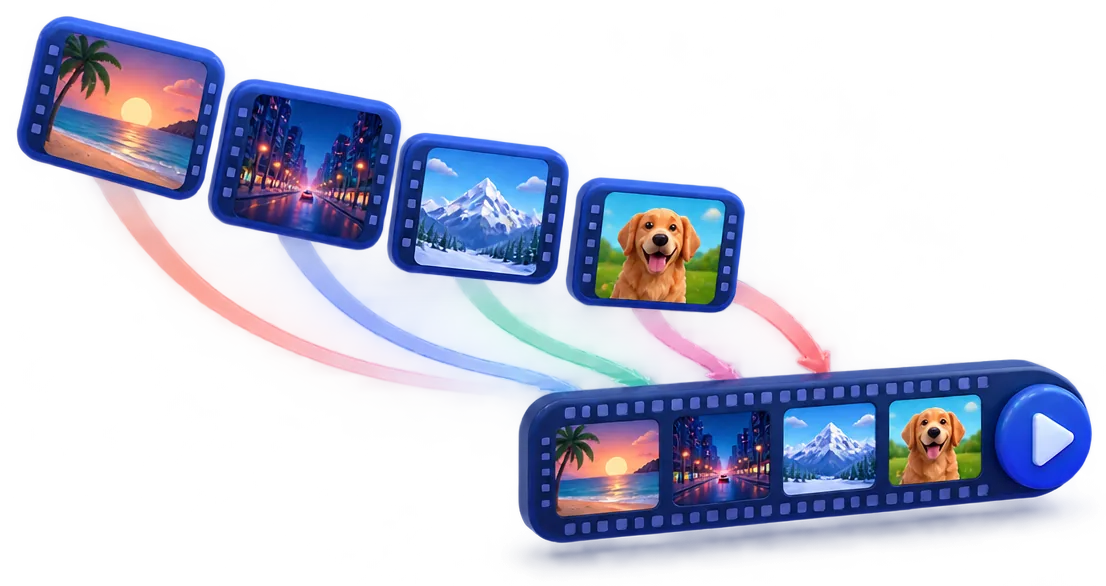
Recorded your tutorial or demo in a few takes? Join them into one MP4 you can upload anywhere. OBS MKV files, Mac MOV recordings and Windows clips all work.
- MKV, MOV, MP4 and WebM
- Add title slides as images
- Nothing to install
Your account is ready. Add your name whenever you like.
Choose a template
Use Plain merge or pick a slideshow template for title cards, soft fades and a song.
Slideshow preview
Add media
Drop your screen recordings here
or paste a screenshot (⌘V on Mac, Ctrl+V on Windows)
Almost any video or photo: MP4, MOV, AVI, WMV, MKV, MTS, HEIC, JPG, PNG and more
Stock photos
Choose a photo to add it to your video.
Arrange your clips 0
Drag across clips to select. Drag a selected thumbnail to move the group. Tap clips to select. Hold and drag a selected thumbnail to move the group.
Add files or choose stock photos in Step 2 to arrange them here.
Music
Choose a slideshow template to add music.
Customize look
Optional: slideshow style, transitions, text, overlays and effects. Leave it closed to keep the template's look.
Slideshow style
Choose how your photos and clips appear in the video.
Transitions between clips
Effects
Preview
Add photos or clips to see a preview.
Your video is ready
It's been downloaded to your device.
Your video
After you export, you can play and download your video here.
Project backup
Why screen recordings end up in pieces
Nobody gets a whole demo right in one take.
One video, six takes
Make one mistake and you start a new recording, so a five-minute demo ends up as several files.
Put the good takes in order and merge them into one video.
MKV files that won't upload
OBS users often record to MKV so a crash can't ruin the file, but many sites, chat apps and course platforms won't take MKV.
ClipMerge reads MKV directly and saves one MP4. There's no need to remux first.
No title or end card
A bare recording jumps straight in, with nothing to say what it is.
Add a title slide as an image (a slide exported from Slides or Keynote, or a screenshot) and choose how many seconds it shows.
How to combine screen recordings
Add your takes
Drop in the recordings, plus any title or end slides as images.
Put them in order
Drag the takes and slides into order, and set how long each slide shows.
Merge and download
You get one MP4 for YouTube, Slack, a course platform or a bug report.
Good to know
- Record every take at the same size: the merged video is as tall as the smallest one, and text is sharpest when nothing is scaled down.
- Mac screen recordings (Shift-Command-5) are MOV files, and the Windows Snipping Tool and Xbox Game Bar save MP4. All of them work here.
- Without an account, clips can be up to 30 seconds, and a free account takes clips of up to 60 seconds. Tutorial takes are usually longer, so they need ClipMerge Pro.
More ways to use ClipMerge
Questions
Do I need to remux OBS recordings first?
No. You can skip OBS's Remux Recordings: add the MKV files directly.
Will the text stay sharp?
The merged video is encoded at a high quality setting, at the size of your smallest take. Keep every take the same size and text stays sharp.
Can I cut out mistakes?
Not yet: ClipMerge joins whole clips. Stop and restart the recording around a mistake, then merge the good takes.
Is ClipMerge free?
Yes. Without an account you can use Plain merge to combine up to 4 clips of up to 30 seconds each, plus up to 10 photos, into each video, and a free account raises that to 16 clips of 60 seconds, plus 60 photos. You can choose whether to include the ClipMerge.com watermark. ClipMerge Pro unlocks all slideshow templates and longer clips with one-time passes starting at 15 days.
Do I need an account?
No, you can merge without one. A free account (just an email and a password) lets you merge more and longer clips, and keeps the clips and photos you add in My videos, so you can save projects to come back to. Finished videos download straight to your device. Pro needs an account too, so your Pro time follows you to any device.
Is Pro a subscription?
No. Pro passes are one-time payments through PayPal for 15 days, one year, or lifetime access, and nothing renews by itself.
Which browsers work?
Recent versions of Chrome, Edge, Safari and Firefox, on computers, phones and tablets. Merging uses your device's video encoder, so it's quickest on a computer.
What happens to my files?
Merging happens in your browser, and finished videos download straight to your device. Copies of the clips and photos you add stay in My videos for 30 days on Free or one year on Pro, and we email account holders 10 days before they expire. Files from visitors without an account are removed after 30 days.