Windows has a video editor built in, but which one you get depends on your version. Windows 11 comes with Clipchamp, which needs you to sign in with a Microsoft account. Many Windows 10 PCs still have the older Video Editor in the Photos app, which doesn't. And a browser tool joins clips in Edge or Chrome with nothing to install. Here's how each one works, and which to pick.
The quick answer
- On Windows 11 and want to trim, add music or titles? Use Clipchamp: sign in, drag the clips onto the timeline, export.
- On Windows 10 and just want a simple home video? Search the Start menu for Video Editor. If it's there, it needs no account.
- Just want the clips joined, or have photos and unusual formats to mix in? Use a browser tool. There's no project to set up and no account needed.
Way 1: Clipchamp
Clipchamp is Microsoft's video editor. It's included with Windows 11, and on Windows 10 you can get it free from the Microsoft Store.
- Open Start, type Clipchamp and open it. Sign in with your Microsoft account when asked.
- Choose Create a new video.
- Select Import media and pick your clips, or drag them from File Explorer onto the window. They appear under Your media.
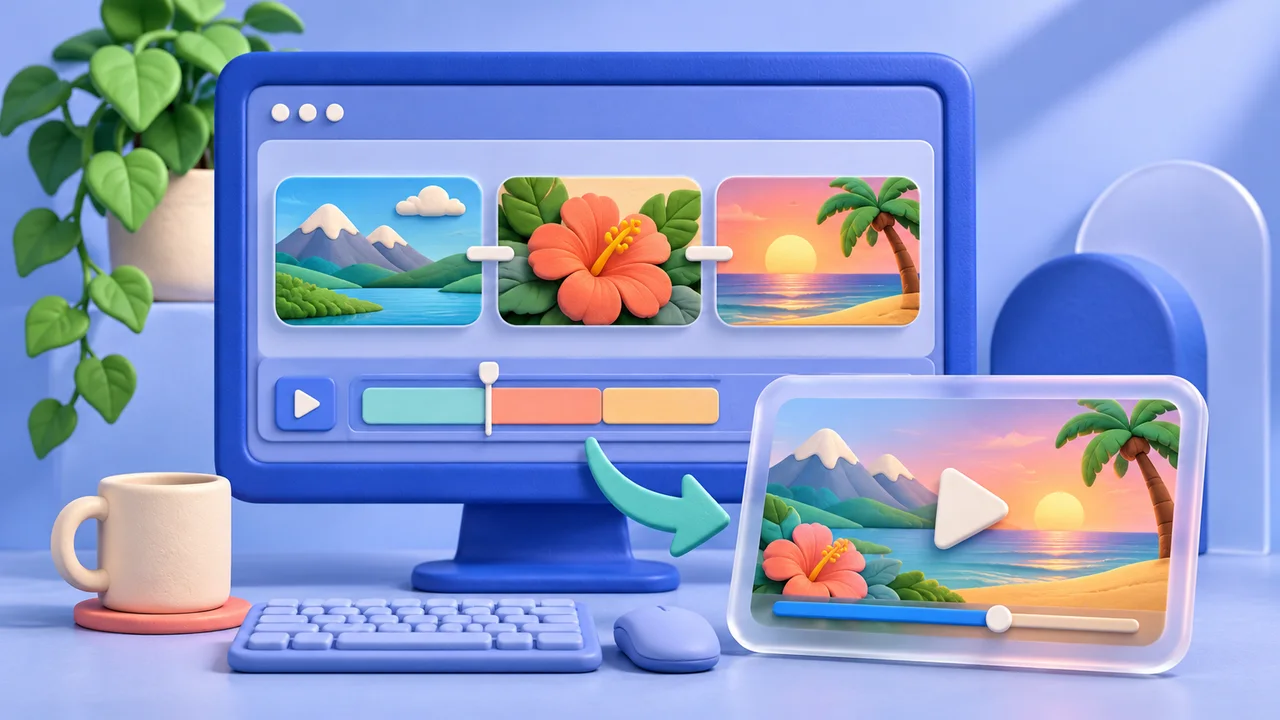
- Drag each clip down onto the timeline, one after another, in the order you want. Drag them along the timeline to rearrange them.
- To shorten a clip, select it on the timeline and drag either end inwards.
- Choose Export at the top right and pick a quality, such as 1080p. When it finishes, the MP4 is saved to your PC. If you can't see where it went, look in your Downloads folder.
Good for: anything that needs real editing: trimming, music, text, transitions.
Watch out for:
- You can't use it without signing in.
- At the time of writing, the free version exports at up to 1080p, and 4K export is part of the paid plan.
- Projects start as landscape (16:9). For a vertical video, change the shape with the aspect ratio button next to the preview, which shows 16:9. Clips that don't match the shape get black bars.
Way 2: Video Editor in the Photos app
Older versions of the Photos app include a simple Video Editor. It's on most Windows 10 PCs. On Windows 11, the current Photos app points you to Clipchamp instead. Microsoft has offered the older app as Photos Legacy in the Microsoft Store, but it may not be available on every PC, so don't count on it.
- Open Start, type Video Editor and open it.
- Choose New video project and give it a name.
- In the Project library, choose Add › From this PC and select your clips.
- Select them and choose Place in storyboard, or drag them onto the storyboard at the bottom.
- Drag clips along the storyboard to change the order. Trim and Split are on the storyboard toolbar.
- Choose Finish video, pick a quality (High 1080p suits most clips), then Export and choose where to save the file.
Good for: a quick home video on Windows 10, with no sign-in.
Watch out for:
- It has been replaced by Clipchamp, so it won't get new features or wider format support.
- Clips of a different shape get black bars. The Remove or show black bars button on the storyboard toolbar zooms a clip to fill the frame instead, which crops its edges.
Way 3: In your browser
A browser tool skips the app and the project. With ClipMerge, in Edge, Chrome or Firefox:
- Go to clipmerge.com and press Choose files, or drag clips and photos from File Explorer onto the page.
- Drag them into order. The video plays from top to bottom. For photos, set how many seconds each one shows.
- Press Merge clips. When it's done, press Download MP4.
The merging runs on your PC's own video encoder, so there's no server queue to wait in. Files your browser can't read, such as camcorder MTS files or old AVI and WMV videos, are converted on your PC first. That needs a one-time download of about 10 MB. In almost every browser the result is an H.264 MP4, which Windows' own apps play without any extra codecs.
Good for: joining clips from different phones and cameras, mixing in photos, and getting one file quickly on any PC, including one that isn't yours.
Watch out for:
- It joins whole clips in order, with no trimming. A song and title cards come only with slideshow templates, such as wedding, birthday and graduation.
- Without an account you can merge up to 4 clips of up to 30 seconds each. A free account takes 16 clips of up to 60 seconds, and longer recordings need a Pro pass. You can turn the ClipMerge.com watermark off before exporting.
Which one should you use?
| Clipchamp | Photos Video Editor | Browser tool | |
|---|---|---|---|
| Comes with | Windows 11 (Microsoft Store on Windows 10) | Most Windows 10 PCs | Any recent browser |
| Account needed | Microsoft account | No | No (a free one allows longer clips) |
| Trim, music, titles | Yes | Yes | No |
| Photos between clips | Yes | Yes | Yes |
| Camcorder MTS, AVI, WMV, MKV | Depends on the file | Depends on the file | Yes, converted first |
| Quickest for "just join these" | No | Fairly | Yes |
If you'll edit videos often, Clipchamp is worth learning. If you merge a few clips now and then, the browser is less to deal with.
When a clip won't open or play
iPhone videos won't play in Windows. iPhones record in HEVC (H.265) by default, and most Windows PCs need HEVC Video Extensions from the Microsoft Store to play it. Our guide to HEVC explains your options, and combining iPhone videos in a browser gives you an H.264 MP4 that plays without the extension.
Your iPhone clips are missing from the PC. That's usually down to how they were copied, or to iCloud keeping the originals online. See how to transfer videos from an iPhone to Windows.
A camcorder clip plays with no sound. Many camcorders record Dolby Digital (AC-3) sound, which some apps can't play. Converting the clip, or merging the MTS files with a tool that converts the sound, fixes it.
Tips for a tidy result
- Number your clips first. In File Explorer, select a clip, press F2 and rename it 01, 02, 03. Every tool here then lists them in the right order.
- Decide on the shape before you start. A landscape video with a vertical phone clip in it gets bars on both sides of that clip. Combining vertical and horizontal videos covers the choices.
- Joining many identical clips? GoPro chapters and dashcam files can be joined with the free command-line tool FFmpeg, often without re-encoding at all, which is quicker and keeps the exact original quality.
- Keep the originals. All three tools make a new file and leave your clips as they are, so you can always start again.
Common problems
Clipchamp won't import a file. Convert it to MP4 first, for example with HandBrake, or use a tool that converts it for you.
The export takes ages. Long or 4K projects take a while on any PC. Close other apps, plug a laptop in, and export at 1080p unless you need 4K.
The sound drifts out of sync after joining. This is often a phone clip recorded at a variable frame rate. Our guide to keeping audio in sync when merging explains the causes and fixes.