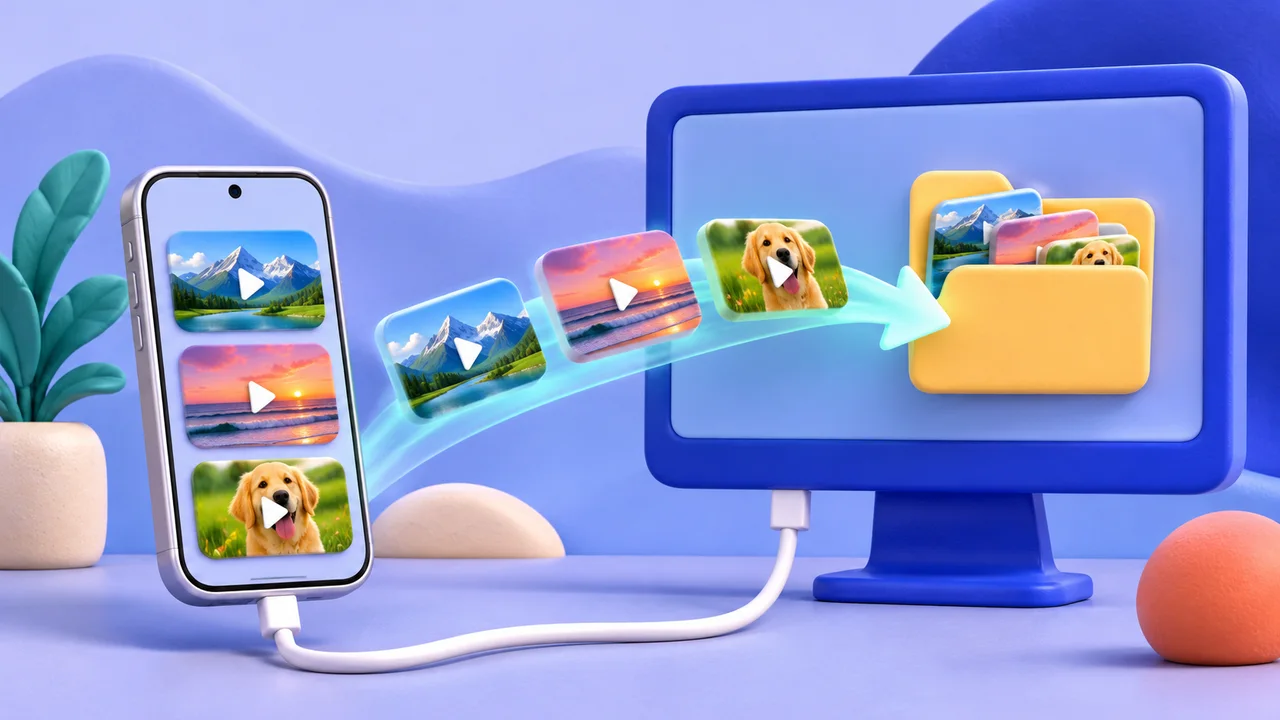
The quickest way is a USB cable: unlock your iPhone, tap Trust, then import with the Windows Photos app or copy the files straight from the DCIM folder in File Explorer. Before you start, pick one iPhone setting: whether videos are converted to the widely compatible H.264 format on the way (Automatic) or copied exactly as recorded (Keep Originals). If your library lives in iCloud, use iCloud for Windows instead, or download the originals to the iPhone first.
Before you start: two things to check on the iPhone
Automatic or Keep Originals
Go to Settings › Apps › Photos (on iOS 17 and earlier, Settings › Photos), scroll to the bottom and find Transfer to Mac or PC.
| Automatic | Keep Originals | |
|---|---|---|
| What you get | Videos converted to H.264 and photos to JPG as they copy | The exact files: usually HEVC video and HEIC photos |
| Plays on Windows | Almost always | Only if the PC can play HEVC |
| Speed | Slower, because the iPhone converts as it goes | Faster |
| Quality | Converted, so very slightly lower | Exactly as recorded |
Choose Keep Originals if you want the best quality or are backing up a whole library. Choose Automatic if you just want a few clips that play on Windows straight away. You can change it at any time.
Are the videos actually on the iPhone?
If iCloud Photos is on with Optimize iPhone Storage selected, many full-size videos live only in iCloud, and the iPhone keeps a small preview. A cable can only copy what's on the phone, so those videos go missing or the copy stalls. Either switch to Download and Keep Originals in the same Photos settings (you need enough free space, and it takes a while), or use the iCloud method below.
Way 1: the Windows Photos app
This is the easiest way, and it remembers what you've already imported.
- On the PC, install Apple Devices from the Microsoft Store. It installs the drivers Windows needs to see an iPhone. (Apple's own guide recommends it; on PCs that can't run it, iTunes for Windows does the same job.)
- Connect the iPhone with a cable that carries data. Some cheap cables only charge.
- Unlock the iPhone. When it asks Trust This Computer?, tap Trust (or Allow) and enter your passcode.
- Open the Photos app on the PC and select Import at the top. Choose your iPhone from the list. On some versions of Windows the option reads From a connected device or From a USB device.
- Photos finds everything it hasn't imported before. Select the videos you want, or select all, choose where to save them, and start the import.
Keep the iPhone unlocked and connected until it finishes. With thousands of items the first import can take a long time.
Way 2: File Explorer
File Explorer gives you the files themselves, with no app in between.
- Connect, unlock and trust the iPhone as above.
- Open File Explorer and choose This PC › Apple iPhone › Internal Storage › DCIM.
- Inside are numbered folders, such as 100APPLE and 101APPLE, or on recent iOS versions folders named by year and month. Open them in turn.
- Videos are mostly .MOV files; screen recordings and some other clips are .MP4. Switch to View › Details and sort by Type to group them.
- Copy (don't move) the files to a folder on your PC.
A few things you'll notice in DCIM:
- Live Photos appear as pairs, such as IMG_1234.HEIC and IMG_1234.MOV. The short MOV is the moving part. Our guide to Live Photos explains what to do with them.
- Files starting IMG_E are edited versions; the file without the E is the original.
- If a big copy stops with an error such as "A device attached to the system is not functioning", switch the iPhone to Keep Originals and copy smaller batches. The on-the-fly conversion is the usual cause.
Way 3: iCloud for Windows (no cable)
If you already use iCloud Photos, this is the simplest way to keep a PC up to date.
- On the iPhone, check iCloud Photos is on: Settings › [your name] › iCloud › Photos.
- On the PC, install iCloud (iCloud for Windows) from the Microsoft Store and sign in with your Apple Account.
- Turn on Photos and choose the iCloud Photos option. Names vary a little between versions.
- Your library appears under iCloud Photos in File Explorer's sidebar, and in the Windows 11 Photos app. Copy the videos you want into an ordinary folder, so the full file downloads and stays on the PC.
For a handful of clips you can also sign in at icloud.com in any browser, open Photos, select the videos and download them.
This needs enough iCloud storage for your library (the free plan is 5 GB) and a decent internet connection. A long 4K video can take a while to download.
Other cloud apps work too. If you already back up your camera roll with OneDrive or Google Photos, download the videos from there on the PC. AirDrop doesn't work with Windows.
Which way should you use?
| You want to… | Use |
|---|---|
| Copy everything new since last time | Photos app |
| Grab a few specific files quickly | File Explorer |
| Keep the exact original files | Photos app or File Explorer, with Keep Originals |
| Move videos without a cable | iCloud for Windows or icloud.com |
| Copy videos that are stored in iCloud | iCloud for Windows |
Troubleshooting
The iPhone doesn't show up at all. Unlock it and look for the Trust prompt. Try another cable, and plug straight into the PC rather than a hub. Install or update Apple Devices, then restart both the PC and the iPhone.
You tapped Don't Trust by mistake. On the iPhone, go to Settings › General › Transfer or Reset iPhone › Reset › Reset Location & Privacy. Reconnect, and the prompt appears again. (This also resets location and privacy permissions for your apps.)
Internal Storage is empty, or DCIM has nothing in it. The iPhone is locked, or it hasn't been trusted yet. Unlock it, then unplug and reconnect.
Some videos are missing. They're probably only in iCloud (see "Are the videos actually on the iPhone?" above). The Photos app also skips items it has imported before.
The videos won't play on Windows. They're HEVC. Install HEVC Video Extensions from the Microsoft Store, play them in VLC, or switch to Automatic and copy them again. Our guide to HEVC goes through the choices. If you're joining clips anyway, combining iPhone videos with ClipMerge gives you one H.264 MP4, which Windows plays without any extensions.
The colors look washed out. The clips were recorded in HDR. See why iPhone HDR videos look washed out.
Slo-mo clips play at normal speed. The file holds the full-speed recording, and Apple's Photos app adds the slowdown when it plays it. Edit or export slo-mo clips with an app that understands them, or check them before you delete anything from the iPhone.
You need to send a video on from the PC. Big iPhone videos are often too large for email. See how to send a large video file.