Email can't carry most videos: Gmail's attachment limit is 25 MB, and at a typical 1080p bitrate that's well under a minute of footage. The ways that work are a share link from a cloud service (Google Drive, iCloud, OneDrive, Dropbox), a direct transfer when you're near the other person (AirDrop, Quick Share), or making the file smaller first. Which to use depends on where the other person is and what device they have.
Pick a method
| Situation | Best way | How big |
|---|---|---|
| Both on Apple devices, in the same room | AirDrop | Apple doesn't set a size limit; big files just take longer |
| Android, Windows or Chromebook, nearby | Quick Share | Large files are fine |
| You use Gmail | Attach it anyway: Gmail turns it into a Google Drive link | Up to your Drive storage |
| You use Apple Mail | Mail Drop | Up to 5 GB, available for 30 days |
| Anyone, anywhere, any device | A share link from cloud storage | Up to your storage |
| Through WhatsApp | Send it as a document | 2 GB at the time of writing |
| Just slightly too big | Trim or compress it | Whatever you need |
Email: what actually happens with a big attachment
Gmail
Personal Gmail accounts can attach up to 25 MB, according to Gmail Help. Attach anything bigger and Gmail uploads it to your Google Drive and puts a link in the email instead. When you send it, Gmail asks whether to give the recipients access to the file; say yes, or they'll see an "access denied" page.
Work and school accounts can have different limits set by the administrator.
Apple Mail: Mail Drop
On an iPhone, iPad or Mac, Apple's Mail app offers Mail Drop when an attachment is too big for your email provider:
- Write the email in Mail and attach the video.
- Tap Send. If the message is too large, Mail asks whether to use Mail Drop.
- Choose Use Mail Drop. The video is uploaded to iCloud and the recipient gets a download link.
Apple's Mail Drop limits page gives the details: attachments up to 5 GB, links that work for 30 days, and Mail Drop files don't count against your iCloud storage. It also works from iCloud.com/mail on any computer.
Why "it fit" isn't always enough
Even when your provider accepts a file, the recipient's mail server might not. Many reject large messages, and attachments grow by roughly a third when they're encoded for email. If your attachment is close to a limit, use a link instead.
Share links: the method that works for anyone
A link avoids every size problem except your own storage, and the recipient doesn't need an account.
Google Drive
- Go to drive.google.com and choose New › File upload, or tap + › Upload in the Drive app.
- When it's uploaded, open the file's menu and choose Share.
- Under General access, choose Anyone with the link if the recipient doesn't use Google, then Copy link.
- Paste the link into an email or message.
A free Google account comes with 15 GB of storage, shared with Gmail and Google Photos. For big files, recipients may see a note that Drive can't scan the file for viruses; that's normal for large files, and they can download it anyway.
iCloud (iPhone, iPad, Mac)
In the Photos app, select the video, tap Share, then Copy iCloud Link (this needs iCloud Photos turned on). The link lasts 30 days. A free iCloud account has 5 GB of storage.
OneDrive and Dropbox
Both work the same way: upload, choose Share, copy the link. OneDrive suits Windows users because it's already built into File Explorer.
Tip: check your upload speed, not your download speed. A 2 GB file is 16,000 megabits, so on a 5 Mbps upload it takes almost an hour. Start the upload well before you need the link, and keep the device plugged in and awake.
Nearby: AirDrop and Quick Share
Direct transfers are the fastest way to move a big file between two devices in the same room, and the file arrives exactly as it was, with no compression.
AirDrop (iPhone, iPad, Mac)
- On the receiving device, open Control Center (or Settings › General › AirDrop) and set AirDrop to Contacts Only or Everyone for 10 Minutes.
- On the sending iPhone, open the video in Photos, tap Share, then AirDrop, and pick the device.
- On a Mac, right-click the file in Finder, choose Share, then AirDrop.
Both devices need Wi-Fi and Bluetooth on, and should be unlocked and close together.
Quick Share (Android, Windows, Chromebook)
Quick Share is Google's replacement for Nearby Share, and it's built into Android phones, including Samsung's. On Windows, it needs Google's free Quick Share app.
- On the sending phone, open the video and tap Share › Quick Share.
- Pick the nearby device. The other person taps Accept.
- On Android, received files usually land in Downloads, in a Quick Share folder.
If devices can't see each other, Google's help suggests putting both on the same Wi-Fi network; some office networks block device-to-device sharing, in which case connect the computer to your phone's hotspot.
Between an iPhone and a Windows PC there's no AirDrop, so use a cloud link or a cable. Our guide to transferring iPhone videos to Windows covers the cable route.
Make it smaller first
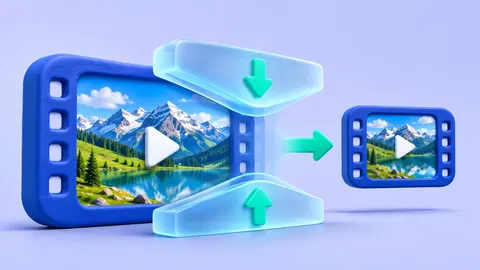
If the file only needs to slip under a limit, shrinking it is often quicker than any of the above. The maths is simple: file size is bitrate multiplied by length. To fit a 3-minute video into 25 MB, the whole file has to average just over 1 Mbps, which means something like 540p or 480p, not 1080p.
HandBrake's Social presets do that sum for you: Social 25 MB 2 Minutes 540p60, for example, aims for a file of 25 MB or less from a clip up to two minutes long. Our guide to making video files smaller covers trimming, HandBrake and FFmpeg in detail.
Before you send: will it play at the other end?
A large video that won't open is a wasted download. The usual culprit is HEVC (H.265), the format iPhones use by default: it plays on Apple devices and most recent phones, but some Windows PCs need an extra codec for it, and some older devices and apps can't play it at all. If you're not sure what the other person has, send an H.264 MP4. What is HEVC explains how to convert.
If you're sending a batch of clips, consider joining them into one file first: one link, one download, and the clips play in the order you meant. ClipMerge does this in a browser, and its output is an H.264 MP4 in almost every browser, which plays on nearly anything. The watermark is optional.
Common problems
The recipient gets "access denied" or "request access". The link isn't shared publicly. Change its access to Anyone with the link.
The link stopped working. Mail Drop and iCloud links expire after 30 days. Share the file again.
AirDrop doesn't show the other device. Check that its AirDrop setting isn't Receiving Off, that both have Wi-Fi and Bluetooth on, and that the screen is unlocked.
For WhatsApp specifically, see how to send videos on WhatsApp without losing quality, which covers sending as a document.