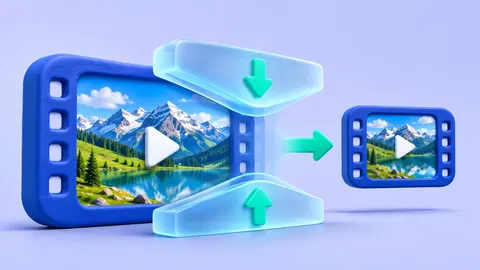
WhatsApp compresses every video you send the normal way, from the gallery, and that includes videos sent in HD. To send the original file untouched, send it as a document instead: the other person receives exactly the file you recorded. For files too big for that, or videos you want several people to keep, share a cloud link.
How WhatsApp treats your video
| How you send it | What arrives | How it shows in the chat |
|---|---|---|
| From the gallery, Standard quality | A heavily compressed copy | Plays in the chat |
| From the gallery, HD | A less compressed copy, still not the original | Plays in the chat, with an HD label |
| As a document | The original file, unchanged | A file with its name and size; tap to open it |
| As a link (Google Drive, iCloud) | The original, downloaded from the cloud | A link |
When WhatsApp added HD video in 2023, standard meant 480p and HD meant 720p. WhatsApp may change those numbers, but the principle holds: anything sent from the gallery is re-encoded into a smaller file, and a 4K or 1080p video won't arrive at full resolution.
Option 1: Tap HD before you send
The quickest improvement, and fine for most everyday clips.
- Open the chat and tap the attach button (the paperclip on Android, + on iPhone), then choose your gallery or photos.
- Pick the video.
- On the preview screen, tap the HD icon at the top and choose HD quality.
- Tap Send.
To make HD the default, recent versions of the app have Settings › Storage and data › Media upload quality; choose HD quality. HD files are bigger, so they take longer to send and use more mobile data.
Option 2: Send it as a document (original quality)
This is the way to send a video without any compression. WhatsApp treats it like any other file, such as a PDF.
On Android
- Open the chat and tap the paperclip icon.
- Choose Document.
- Browse to the video. Phone camera videos are usually in the DCIM › Camera folder; videos saved from other apps may be in Movies or Download.
- Tap the file, then Send.
On iPhone
- Open the chat and tap +.
- Choose Document.
- Depending on your WhatsApp version, you can choose the video straight from your photo library, or you'll see the Files app. If you only see Files, go back to the Photos app first, open the video, tap Share, then Save to Files, and pick it from there.
- Tap Send.
On a computer
In WhatsApp on Windows or Mac, or WhatsApp Web, click the attach (+) icon, choose Document and pick the file. You can also drag the file into the message box.
What to know about documents
- Size limit: at the time of writing, WhatsApp's help pages give 2 GB as the maximum document size. Check the WhatsApp Help Center if a file is refused.
- The recipient has to download it before it plays, and it uses their data. It won't play inline like a normal video.
- The file name shows. Rename the file before sending, such as "Emma-graduation.mp4" rather than "IMG_4821.MOV".
- Nothing is converted. That's the point, but it also means the other person needs a phone or computer that can play the file as it is. See below.
Option 3: Send a link
For a file over the document limit, a video you want a whole group to download, or something people should keep, a link is better than an attachment. Upload the video to Google Drive, iCloud, OneDrive or Dropbox, make a share link, and paste that link into the chat. Anyone with the link gets the original file. How to send a large video file goes through each service, plus AirDrop and Quick Share for people nearby.
Make sure it plays at the other end
When a video goes as a document, the other person gets your phone's exact file, so its format matters.
- iPhone videos are usually HEVC (H.265) in a .MOV file. Recent phones and Macs play them, but some Windows PCs need an extra codec, and some older devices and apps can't play them at all. What is HEVC explains the options.
- H.264 in an MP4 is the safest choice. It plays on almost every phone, computer and TV made in the last decade or more.
- Several clips? Join them into one file before sending, so the other person gets one download in the right order instead of a pile of files. ClipMerge joins clips and photos into one MP4 in your browser, which in almost every browser is H.264 with AAC sound, so it plays nearly anywhere. The watermark is optional.
If a document is too big and a link isn't an option, shrink the file yourself, so you control how much quality is lost rather than letting the app decide. Our guide to making video files smaller has HandBrake and FFmpeg settings that keep the picture clean.
Status updates and forwarding
- Status videos are always compressed and have their own length limit, so the HD and document tricks don't apply. Post a short clip to Status, and send the full-quality version as a document to anyone who asks for it.
- Forwarding a video that arrived compressed forwards the compressed copy. If quality matters, ask the person who filmed it to send the original as a document, or a link.
Common problems
The HD option isn't there. Update WhatsApp from the App Store or Google Play; HD sending arrived in 2023 and the default-quality setting after that. Or skip HD and send the video as a document.
The other person sees a file instead of a video. That's how documents look. They tap it to open it in their phone's video player. To keep it, on an iPhone they can open it and use Share › Save Video; on Android, the steps depend on the phone and file manager.
The file is too large to send. It's over the document limit. Send a link, or make the file smaller first.
It still looks bad after sending in HD. HD is still compressed. Send it as a document.
The video won't open on their computer. It's probably HEVC. Convert it to an H.264 MP4 and send that instead.