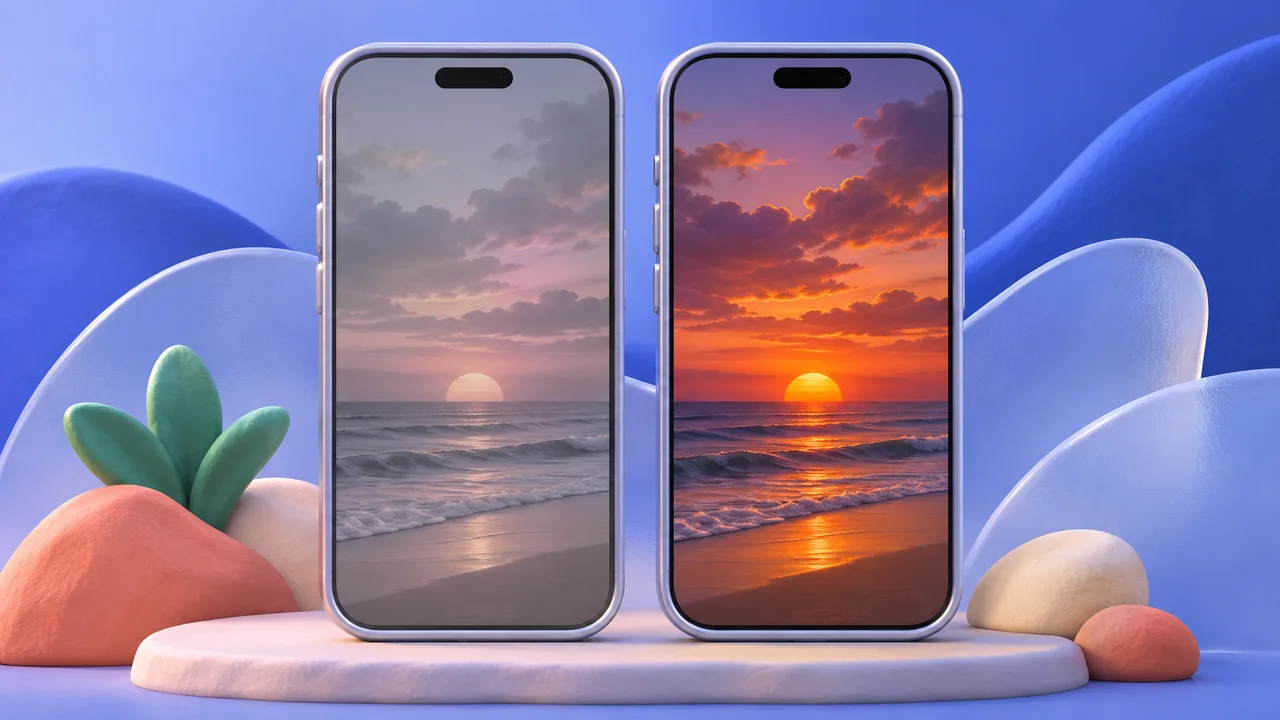
Since the iPhone 12, iPhones can record HDR video in Dolby Vision. On an HDR screen it looks bright and vivid, but when an app, website or screen treats it as ordinary video, the colors come out flat, grey and washed out (or, in some apps, harsh and overexposed). To fix future clips, turn off HDR Video in Settings › Camera › Record Video. To fix clips you've already shot, make an SDR copy with iMovie or FFmpeg.
What's actually going wrong
Almost all video for the last few decades has been SDR (standard dynamic range): a fixed range of brightness and a standard set of colors that every screen and app understands.
HDR (high dynamic range) video stores more: brighter highlights, deeper shadows and a wider range of colors. The iPhone records it as 10-bit HEVC with a brightness curve called HLG, a wide color space called Rec. 2020, and Dolby Vision information that tells the player how to show it.
A player that understands HDR maps all of that onto your screen, a process called tone mapping. A player that doesn't simply reads the numbers as if they were SDR. The wide colors get squeezed into a smaller range, so they look desaturated, and the brightness curve is read wrongly, so blacks look grey and contrast goes flat. That's the washed-out look.
It shows up most often:
- on Windows PCs and many Android phones, depending on the screen and the app
- in video editors, especially when HDR and SDR clips share one timeline
- on websites and in apps that convert your upload without tone mapping it properly
- in screenshots and screen recordings of HDR video
Some people see the opposite problem on the iPhone itself: HDR clips look much brighter than everything around them, because the iPhone pushes the screen brightness up for HDR highlights.
How to tell if a clip is HDR
- On an iPhone: depending on your iOS version, Photos shows a small HDR label when you open an HDR video.
- On a computer: open the file in the free MediaInfo app. An HDR iPhone clip lists HDR format: Dolby Vision, Transfer characteristics: HLG and Color primaries: BT.2020. An SDR clip shows BT.709.
Fix 1: stop recording in HDR
This only affects new videos, but it's the simplest fix if you share widely.
- Open Settings › Camera › Record Video.
- Turn off HDR Video (it may be labeled HDR Video (High Efficiency)).
HDR video is always recorded in HEVC, which is why the switch may mention High Efficiency. You don't need to change Formats as well: turning off HDR Video is enough.
Should you leave HDR on? Keep it if you mostly watch on recent iPhones, iPads, Macs and HDR TVs, or upload to YouTube. Turn it off if you send videos to people on Windows or Android, edit them in other apps, or join them with footage from other cameras. Our guide to the best iPhone video settings covers the other choices on that screen.
Fix 2: make an SDR copy on the iPhone with iMovie
iMovie is Apple's free editor, from the App Store. Apple's support article on HDR footage describes this route: share from iMovie with HDR turned off, and you get an SDR version.
- Open iMovie and tap Start New Project › Movie.
- Select the HDR clip, or several, and tap Create Movie.
- Tap Done.
- Tap the Share button, then tap Options at the top of the share sheet.
- Make sure HDR is turned off.
- Tap Save Video. The SDR copy is saved to your Photos library as a new video, and the original stays as it was.
Send or upload the new copy, not the original.
Fix 3: make an SDR copy on a Mac
iMovie for Mac (version 10.2 and later) imports HDR clips, and Apple says projects shared from it are SDR.
- In iMovie, choose Create New › Movie and import the clips.
- Drag them onto the timeline.
- Choose File › Share › File, pick a resolution and save.
If you need to keep HDR for some versions, Apple's route is Final Cut Pro, which can export both.
Fix 4: FFmpeg on any computer
FFmpeg is a free command-line tool for Windows, Mac and Linux. This command tone maps an iPhone HDR clip to SDR and saves an H.264 MP4:
ffmpeg -i IMG_1234.MOV -vf "zscale=t=linear:npl=100,format=gbrpf32le,zscale=p=bt709,tonemap=tonemap=hable:desat=0,zscale=t=bt709:m=bt709:r=tv,format=yuv420p" -c:v libx264 -crf 18 -preset slow -c:a aac -b:a 192k IMG_1234-sdr.mp4
In plain terms: it converts the picture to linear light, tone maps it with the "hable" curve, converts it to standard Rec. 709 colors, then encodes it at high quality (-crf 18; lower numbers mean higher quality and bigger files).
It needs an FFmpeg build that includes the zscale filter. Check with ffmpeg -filters | grep zscale on a Mac or Linux, or ffmpeg -filters | findstr zscale on Windows. Most full builds have it. Expect it to be slow: tone mapping is heavy work, especially for 4K.
Every tone-mapping method makes slightly different choices, so compare the result with the original on an HDR screen before converting a whole library.
What platforms do with HDR
- YouTube accepts HDR uploads and makes an SDR version for viewers whose screens can't show HDR. You can upload the original HDR clip. See YouTube's HDR upload guide.
- Social and messaging apps vary, and their handling changes as they update. At the time of writing, some keep HDR on supported phones and others convert it, with mixed results. If a post looks washed out, upload an SDR copy instead.
- Windows PCs, Android phones and TVs depend on the screen and the player. An SDR copy is the safe choice when you don't know what someone will watch on.
Joining HDR clips with other videos
Even editors that support HDR need care when HDR and SDR clips share one video, or one of them ends up looking wrong. Browser tools, ClipMerge included, save standard SDR video and don't produce HDR. For colors you can predict, make SDR copies first (Fix 2, 3 or 4), or record with HDR off, then combine the clips.
If you edit with FFmpeg, convert each HDR clip with the command above before joining, then follow our guide to merging videos with FFmpeg.
Common questions
Will turning off HDR make my videos look worse? On an ordinary screen, no, and colors are more consistent from one device to the next. You only lose the extra-bright highlights on HDR screens.
Why does my video look fine on my iPhone but grey on my laptop? The iPhone understands Dolby Vision and tone maps it for its screen. Your laptop's player, or its screen, doesn't.
Is converting to SDR the same as converting from HEVC to H.264? No. HEVC is the codec, the way the picture is compressed; HDR is about the range of brightness and color. Plenty of HEVC video is SDR. The fixes above change both at once, which is usually what you want for sharing. Our explainer on what HEVC is covers the codec side.