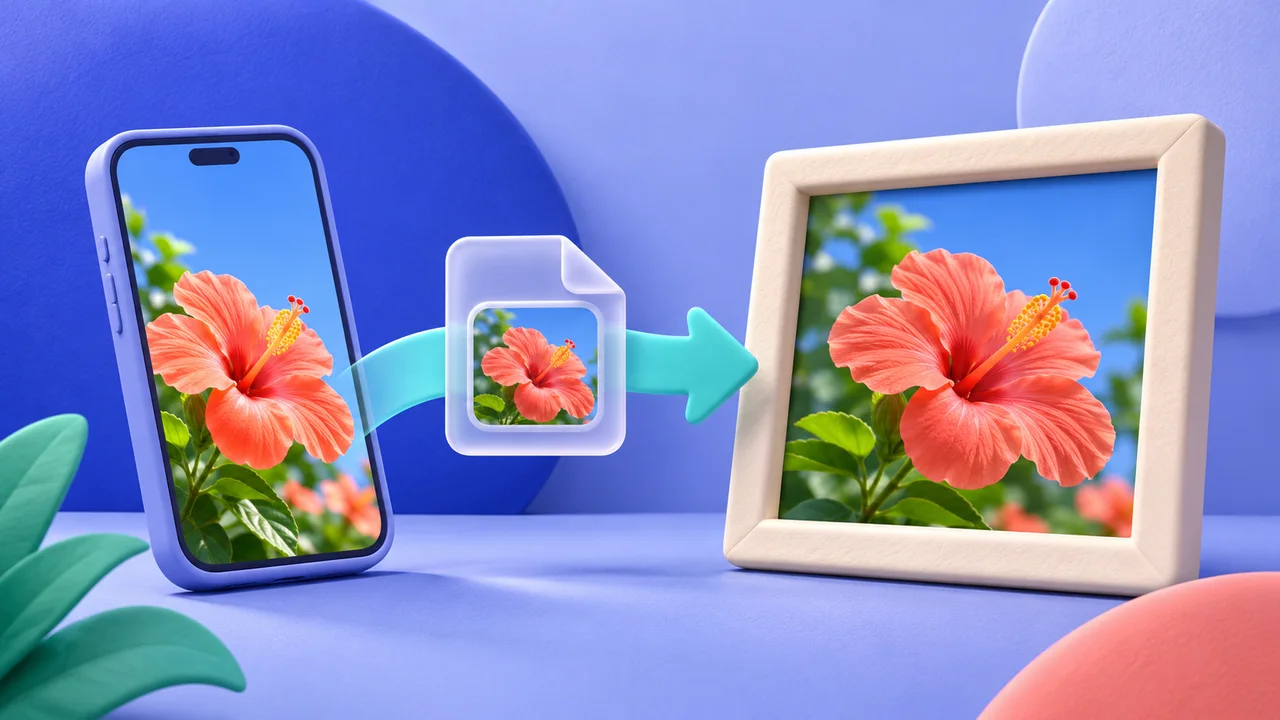
HEIC is the photo format iPhones have used by default since iOS 11. It stores a photo in roughly half the space of a JPG at the same quality, which is why Apple uses it. Macs, iPhones and most recent Android phones open HEIC without any help, Windows PCs may need a free extension, and when a website or app refuses one, converting it to JPG takes a few seconds.
What a HEIC file actually is
HEIC is a kind of HEIF (High Efficiency Image File Format) file. HEIF is the container, the file structure, and the picture inside a .heic file is compressed with HEVC (H.265): the same codec your iPhone uses for High Efficiency video. A few related names you might see:
- .heic: HEIF with HEVC inside. This is what iPhones save.
- .heif: the general name, used by some other cameras and phones.
- .avif: a newer image format built on the same container, with AV1 compression instead of HEVC.
Apple chose HEIC because it's smaller than JPG for the same visible quality, can store more color depth, and can carry extra data such as the depth information Portrait mode uses. Some Android phones offer HEIF as an option too, usually in the camera's settings.
Which devices open HEIC
| Device | Opens HEIC? | Notes |
|---|---|---|
| iPhone and iPad | Yes | It's the default format |
| Mac | Yes | Preview and Photos open it on any recent macOS |
| Windows 10 and 11 | Often, with extensions | Depends on your PC and Windows version (see below) |
| Android | Most recent phones | Google Photos and most gallery apps open it |
| Websites and upload forms | Often not | Many accept only JPG and PNG |
| Older software, printers, photo kiosks | Often not | Convert to JPG first |
Opening HEIC on Windows
Some Windows PCs open HEIC straight away. If yours doesn't, Windows usually needs two extensions from the Microsoft Store:
- Open the Microsoft Store and search for HEIF Image Extensions. Install it. It's free.
- If photos still won't open, also install HEVC Video Extensions. Microsoft charges a small fee for it, though some PCs come with a manufacturer's version already installed.
- Double-click a HEIC file. It should now open in Photos, and File Explorer should show thumbnails.
HEIF Image Extensions reads the container, and HEVC Video Extensions decodes the picture inside, which is why some PCs need both.
Don't want to install anything? On your iPhone, set Settings › Apps › Photos › Transfer to Mac or PC to Automatic (on iOS 17 and earlier, it's under Settings › Photos). Photos you copy to a PC over a cable then arrive as JPGs. Our guide to transferring from an iPhone to Windows covers the steps.
Converting HEIC to JPG
Converting makes a new JPG file. Keep the HEIC originals: converting again later loses a little more quality each time.
On a Mac
A few files, with no apps:
- Select the HEIC files in Finder.
- Right-click and choose Quick Actions › Convert Image.
- Choose JPEG as the format and Actual Size as the size.
- Click Convert to JPEG. The JPGs appear next to the originals.
One file, with control over quality: open it in Preview, choose File › Export, set Format to JPEG and move the quality slider.
A whole folder, in Terminal: macOS has a built-in image tool called sips. Open Terminal, cd into the folder and run:
for f in *.HEIC; do sips -s format jpeg "$f" --out "${f%.HEIC}.jpg"; done
That converts every .HEIC file in the folder to a JPG with the same name. If your files end in lowercase .heic, change both HEICs in the command to match.
On Windows
Once the extensions above are installed:
- Right-click the HEIC file and choose Open with › Paint.
- Choose File › Save as › JPEG picture.
That's one file at a time. For a big batch, it's quicker to use the Automatic transfer setting and copy the photos from the iPhone again.
On an iPhone
The Shortcuts app has a Convert Image action that turns photos into JPG. A simple shortcut with three actions (Select Photos, Convert Image set to JPEG, then Save to Photo Album) converts any photos you pick.
Online converters
They work, but you're sending your photos to someone else's server. Avoid them for anything personal, and check what the site does with uploads.
Stopping your iPhone saving HEIC
Go to Settings › Camera › Formats and choose Most Compatible. New photos are saved as JPG and new videos as H.264.
Before you do, weigh it up:
- New photos and videos take noticeably more space, often close to twice as much.
- Some video features need the High Efficiency setting, including 4K at 60 fps and 240 fps slow motion.
- Your existing photos stay HEIC.
For most people, keeping High Efficiency and converting the odd photo works out better. Our guide to the best iPhone video settings explains what the same setting does to video.
When a website rejects HEIC
Upload forms that accept only JPG and PNG are the most common HEIC problem. A few fixes:
- Upload from the iPhone itself. When you pick a photo from your library in Safari, iOS often converts it to JPG for the website automatically.
- Convert first on a computer, using the steps above.
- Take a screenshot of the photo as a last resort. It's saved as PNG, but at screen resolution, so it's smaller and less sharp.
Using HEIC photos in a video
Many slideshow and video tools refuse HEIC too. iMovie on a Mac handles them. In a browser, ClipMerge's HEIC photos to video page takes HEIC photos as they are, in Chrome, Edge, Firefox or Safari, on Windows or Mac, so you can skip converting. You choose how long each photo shows (1 to 60 seconds), mix in video clips, and download one MP4.
If some of your photos are Live Photos, each one has a short MOV video alongside the HEIC. Our guide to Live Photos explains how to use the moving part instead of the still.
Common questions
Is HEIC better quality than JPG? At the same file size, yes. At the same quality, it's about half the size. Converting a HEIC to JPG never improves it; it just makes it bigger and more widely readable.
Will converting keep the date and location? Usually. Most converters copy this information (the EXIF data) into the JPG. On a Mac, Convert Image has a Preserve Metadata option; check it's ticked.
Why are some of my iPhone photos JPG or PNG already? Screenshots are PNG, photos saved from other apps keep their own format, and anything taken while Most Compatible was on is JPG.