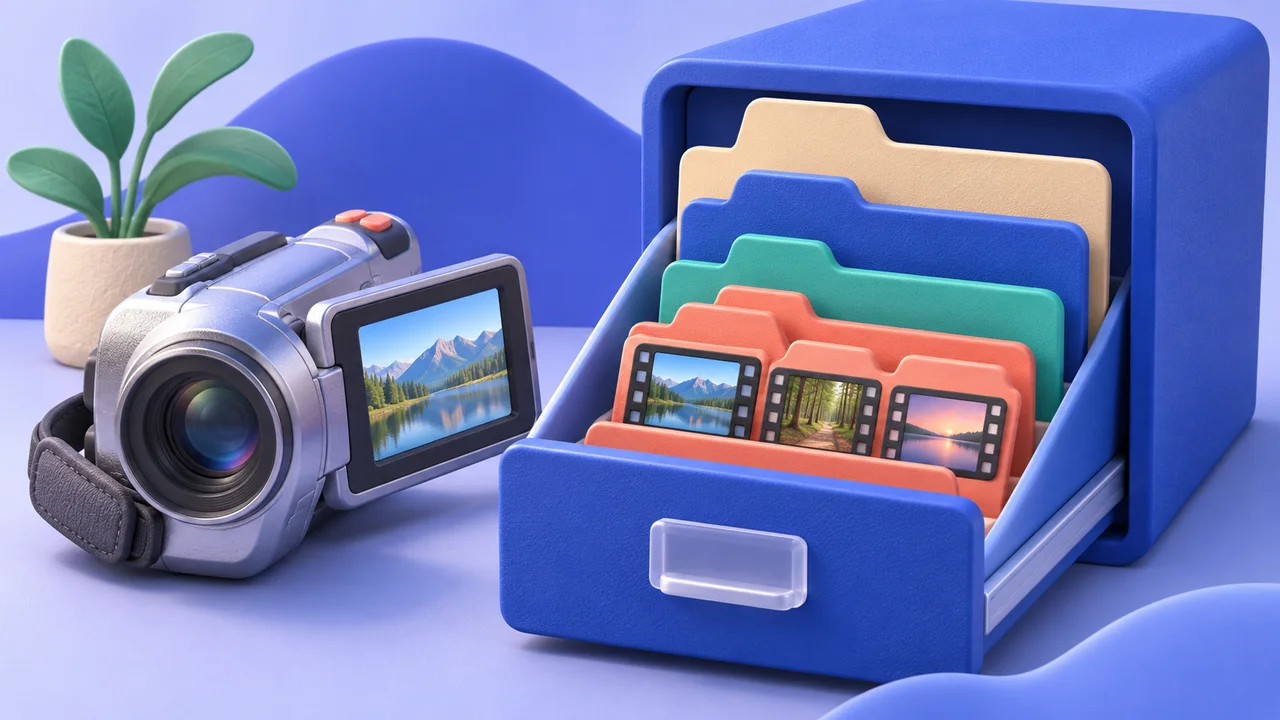
AVCHD is the format most HD camcorders from Sony, Panasonic, Canon and JVC used from about 2006: H.264 video, usually with Dolby Digital sound, saved as .MTS files inside a folder structure borrowed from Blu-ray discs. The clips themselves are in PRIVATE › AVCHD › BDMV › STREAM. Back up the whole AVCHD folder rather than just the clips, play them with VLC, and use HandBrake, FFmpeg or a browser tool when you want MP4s that play anywhere.
What's on the card
A typical AVCHD camcorder card, or the camera's internal memory, looks like this:
PRIVATE
└── AVCHD
    └── BDMV
        ├── STREAM      00000.MTS, 00001.MTS …   the video and sound
        ├── CLIPINF     00000.CPI, 00001.CPI …   information about each clip
        ├── PLAYLIST    00000.MPL …              how clips make up recordings
        ├── BACKUP      spare copies of the index files
        ├── index.bdm
        └── MovieObject.bdm
- STREAM holds the clips. Each time you press record, the camcorder starts a new file, numbered from 00000. Long recordings are also split into several files once they reach a size limit, and the pieces follow on from each other exactly.
- CLIPINF and PLAYLIST describe the clips: their timing, and which files belong together as one recording. The camcorder uses them for playback, and so does software that imports from it.
- index.bdm, MovieObject.bdm and BACKUP are disc-style navigation files, the same idea as on a Blu-ray disc.
Some camcorders add other folders alongside, for photos or thumbnails, and on some the AVCHD folder sits at the top level rather than inside PRIVATE.
MTS or M2TS?
They're the same format: an MPEG transport stream with H.264 video. Camcorders name files .MTS, while Blu-ray discs and some import software name them .M2TS. Anything that plays one plays the other.
AVCHD Progressive, on later camcorders, adds 1080p at 50 or 60 frames per second. Many AVCHD recordings are interlaced (1080i, shown as 50i or 60i on the camera), which matters when you convert them. Newer camcorders often record MP4 or XAVC S instead of AVCHD.
Back up the whole folder, not just the clips
It's tempting to copy only the MTS files. Copy the whole thing instead:
- Import tools need the structure. iMovie, Final Cut Pro and camcorder software recognize a complete AVCHD folder as a camera card, show clips with their recording details and, in many cases, put split recordings back together. A loose MTS file is just a file.
- You can always go back. With the full folder you can still get the clips out later in whatever way suits you. With only the MTS files, some of those options are gone.
- It isn't much extra. The other files are tiny next to the video.
To back up a card:
- Put the card in a card reader, or connect the camcorder with its USB cable and choose the computer or mass storage option on its screen (the wording depends on the camera).
- Copy the whole PRIVATE folder (or the AVCHD folder, if that's at the top) into a new folder named with the date and what's on it.
- Don't rename, move or delete anything inside it.
- Make a second copy on another drive, or in cloud storage.
- Play a few clips from the copy before you delete anything from the card.
On a Mac: the AVCHD "file"
Finder shows the AVCHD folder as a single file, called a package. That's deliberate: it keeps the structure together so Photos, iMovie and Final Cut Pro can import it as a camera card. To import, use File › Import Media in iMovie, then select the card or the AVCHD package.
To reach the clips themselves, right-click AVCHD, choose Show Package Contents, then open BDMV › STREAM. Copy the MTS files out from there. When you back up, copy the whole AVCHD package as it is.
Playing MTS files
- VLC (free, Windows, Mac and Linux) plays MTS files, with sound, as they are.
- Windows' built-in players may show the picture with no sound on some PCs, because they can't decode the Dolby Digital audio. Our guide to videos with no sound explains why.
- Phones, browsers and most social apps don't play MTS at all.
On a modern screen, interlaced clips can show thin horizontal lines, called combing, on anything that moves fast. Converting with deinterlacing removes them: see interlaced vs progressive video.
Converting and joining MTS files
| Tool | Good for | Notes |
|---|---|---|
| HandBrake | Converting files to MP4, with deinterlacing | Free; one file per job, but it has a queue |
| FFmpeg | Converting and joining, sometimes without re-encoding the picture | Free; command line |
| iMovie, other editors | Importing a whole card, editing and exporting | Bigger projects to manage |
| ClipMerge | Joining clips into one MP4 in a browser | Converts the sound for you |
HandBrake
- Open HandBrake and choose an MTS file as the Source.
- Pick a preset, such as Fast 1080p30 from the General presets.
- On the Filters tab, if your camcorder recorded 1080i, make sure Deinterlace is set (for example to Decomb or Yadif).
- Check the Audio tab is set to AAC, which plays everywhere.
- Choose where to save, then Start (or Add to Queue for several files).
FFmpeg
Convert one clip to MP4, copying the picture as it is and converting the Dolby Digital sound to AAC:
ffmpeg -i 00000.MTS -c:v copy -c:a aac -b:a 192k 00000.mp4
Join the pieces of one long recording, which the camcorder split into consecutive files:
ffmpeg -i "concat:00000.MTS|00001.MTS|00002.MTS" -c:v copy -c:a aac -b:a 192k recording.mp4
Convert an interlaced clip to progressive while you're at it (this re-encodes the picture, at high quality):
ffmpeg -i 00000.MTS -vf bwdif -c:v libx264 -crf 18 -c:a aac -b:a 192k 00000.mp4
The concat: method suits pieces of the same recording. To join separate recordings, use FFmpeg's concat demuxer with a list of files instead: see how to merge videos with FFmpeg.
In a browser
ClipMerge's MTS page reads MTS and M2TS files as they are: drop them in, check the order and download one MP4, with the sound converted to AAC. It converts each clip on your device first, so a computer is much faster than a phone. Without an account, clips can be up to 30 seconds, and a free account takes up to 60; most camcorder recordings are longer, so they need a Pro pass.
Common problems
The clips are out of order. File names count up in the order you recorded (00000, 00001…), so sort by name, not by date: copying can change the dates a computer shows.
One recording is in several files. The camcorder split it at its size limit. Join the pieces in number order, with FFmpeg's concat: method or any of the tools above, and nothing is lost between them.
There's no sound in some apps. That's the Dolby Digital (AC-3) audio. Converting it to AAC fixes it everywhere.
The files are MOD or TOD, not MTS. Those come from older camcorders, recording MPEG-2 video. VLC plays them, and HandBrake and FFmpeg convert them the same way.