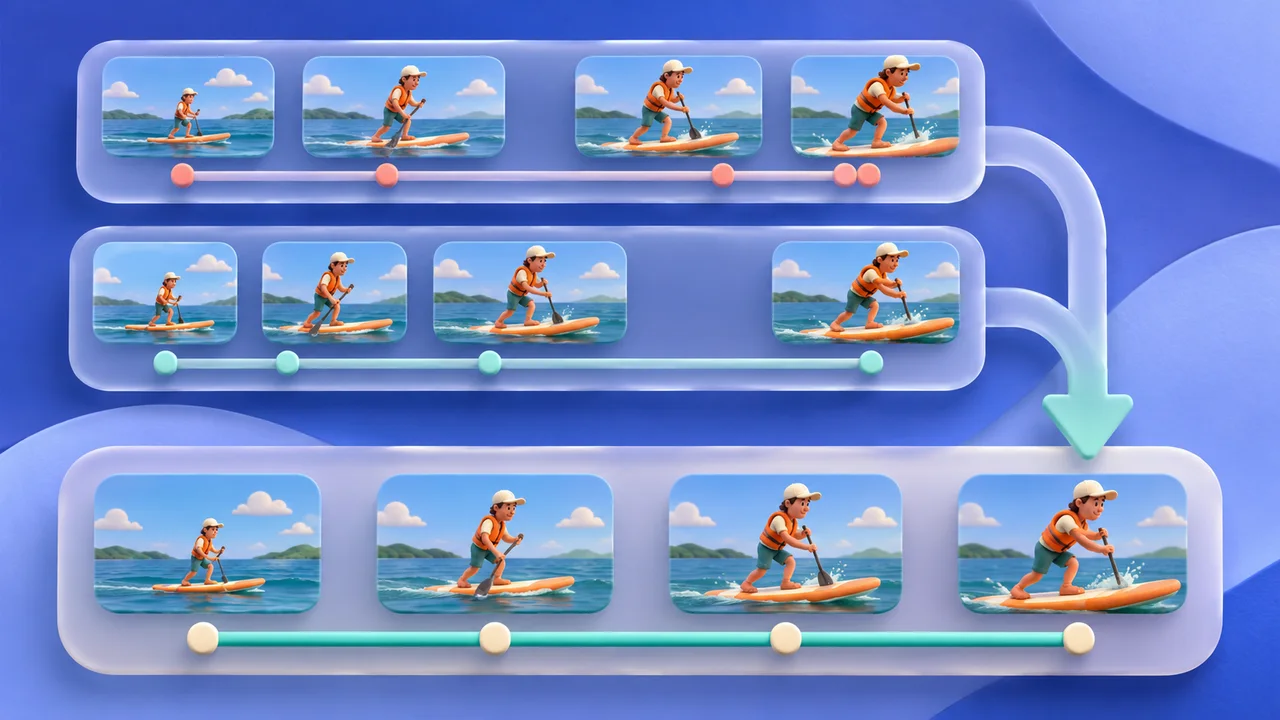
When you merge clips with different frame rates, most tools give the finished video one rate and convert the other clips to it, usually by dropping or repeating frames. Going from 60 to 30 fps is clean, because exactly every other frame goes. Going between 24, 25 and 30 can't be done evenly, so movement gets a slight, regular hitch called judder. Pick the rate most of your footage was shot at, and avoid the uneven conversions where you can.
Where the different rates come from
| Rate (fps) | Usually from |
|---|---|
| 23.976 or 24 | Film, and "cinematic" modes on phones and cameras |
| 25 or 50 | Cameras and TV in PAL countries, such as the UK, most of Europe and Australia |
| 29.97 or 30 | Phones, and cameras and TV in NTSC countries, such as the US, Canada and Japan |
| 59.94 or 60 | Phones set to 60 fps, action cameras, game recordings |
| 120 or 240 | Slow-motion modes |
The odd-looking 23.976, 29.97 and 59.94 are left over from colour TV in NTSC countries. The gap between 29.97 and 30 is so small that mixing them rarely matters. Phones also tend to record a variable frame rate, where "30 fps" is a target rather than a fixed number. That causes its own problems, covered in variable frame rate explained. For what each rate looks like and when to shoot it, see frame rates explained.
What frame rate conversion does
Most tools convert by keeping, dropping or repeating whole frames so they land on the new rate. The clip's speed and sound don't change: a 10-second clip is still 10 seconds long. What changes is how many different pictures you see each second, and how evenly they're spaced.
| From → to | What happens | How it looks |
|---|---|---|
| 60 → 30 | Every other frame is dropped | Smooth, just less fluid than 60 |
| 50 → 25 | Every other frame is dropped | Smooth, just less fluid than 50 |
| 30 → 60 | Every frame is shown twice | Exactly like 30 fps: no smoother |
| 24 → 30 | One frame in every four is repeated | Slight judder in pans and steady movement |
| 25 → 30 | One frame in every five is repeated | Slight judder |
| 30 → 25 | One frame in every six is dropped | Small jumps, easiest to see in pans |
| 30 → 24 | One frame in every five is dropped | Small jumps |
| 29.97 → 30 | One frame is repeated about every 33 seconds | Invisible in practice |
Judder is most visible when the camera pans slowly across something detailed, or when something moves steadily across the frame. On a person talking to the camera, you'll rarely notice it.
Some editors can blend neighbouring frames instead, which softens judder but can leave ghostly double edges on fast movement. Others offer optical flow or motion interpolation, which invents new in-between frames. It can look convincing on simple movement and smeary on complicated scenes, and it's slow: FFmpeg's minterpolate filter, for example, runs far slower than a normal encode. For most home videos, plain dropping and repeating is fine.
Choosing the output rate
- Go with the majority. If eight clips are 30 fps and two are 60 fps, make a 30 fps video. The 60 fps clips convert cleanly and look normal.
- Keep 60 for fast action. If most of your footage is 60 fps sport, gaming or action-camera video, make a 60 fps video. The 30 fps clips just look like 30 fps clips.
- For 25 and 30 mixed together, pick the one with more footage or the more important footage. The other part gets a little judder whichever way you go.
- Only choose 24 fps for a film look if most of your clips are 24. Converting a lot of 30 fps phone footage down to 24 adds jumps to all of it.
- Don't go above your fastest footage. A 60 fps video made from 30 fps clips is bigger, but no smoother.
Slow-motion clips
Slow motion is filmed at a high rate, often 120 or 240 fps, and played back at a normal rate, so one second of action stretches over four or eight seconds. Before merging, check how your slow-motion clip is saved:
- With the slow motion built in. The file already plays slowly. Merge it like any other clip.
- As a high-frame-rate file that plays at normal speed. On an iPhone, the slow part of a Slo-mo video is applied by the Photos app. Copy the original file to a computer, over USB for example, and many players and editors show it at normal speed. Sharing it from the Photos app usually gives you a version with the slow part built in.
A merging tool that treats a 120 fps clip as normal speed merges it at normal speed. Converting it to 30 fps simply drops three frames in every four. To make it slow yourself, FFmpeg can stretch it and keep every frame:
ffmpeg -i slomo.mov -vf "setpts=4*PTS" -r 30 -an slow.mp4
setpts=4*PTS makes the clip four times longer, which suits a 120 fps clip played at 30 fps. Use 8*PTS for 240 fps. -an drops the sound, which wouldn't be slowed down to match.
How to check and convert a clip's frame rate
To check it:
- Windows: right-click the file, choose Properties, then the Details tab, and look for Frame rate.
- Mac: open the clip in QuickTime Player and choose Window › Show Movie Inspector. It shows the FPS.
- MediaInfo (free, Windows, Mac and Linux) shows Frame rate and Frame rate mode, which tells you whether it's constant or variable.
To convert it:
- HandBrake (free): open the clip, go to the Video tab, set Framerate (FPS) to the rate you want, choose Constant Framerate, then start the encode.
- FFmpeg: this converts a 60 fps clip to 30 fps and copies the sound unchanged:
ffmpeg -i clip-60fps.mp4 -vf fps=30 -c:v libx264 -crf 18 -c:a copy clip-30fps.mp4
The fps filter drops or repeats frames evenly to hit the new rate. To join several clips and convert them all in one command, see merging videos with FFmpeg, which uses the same filter on each clip.
How merging tools handle mixed rates
Video editors such as iMovie, Clipchamp, Shotcut and DaVinci Resolve give a project one frame rate, set in the project settings or taken from the first clip, and convert everything to it when you export. If an editor lets you choose, set the rate before you start editing.
ClipMerge takes the frame rate from the first video clip, anywhere from 15 to 60 fps, and shows photos at that rate. Every clip still plays at its normal speed. So start with a clip at the rate you want the video to have. If you need every frame converted to one exact, constant rate, for broadcast or for an editor that's fussy about it, convert the clips with HandBrake or FFmpeg first.
Common problems
Pans judder after merging 25 and 30 fps clips. That's the uneven conversion. Switch the output to whichever rate most of the footage has, or accept a little judder in the minority clips.
The sound drifts out of sync. Frame rate conversion by dropping and repeating frames doesn't change timing, so drift usually means a variable frame rate clip or a sound problem. Keeping audio in sync when merging goes through the causes.
A slow-motion clip plays at normal speed. It's a high-frame-rate original without the slow-motion part built in. Share it from the phone's gallery app again, or slow it down with the FFmpeg command above.
60 fps clips look oddly smooth next to the rest. That's the difference between 60 and 24 or 30 fps motion, not a fault. Convert them to the same rate as the other clips if you want them to match.