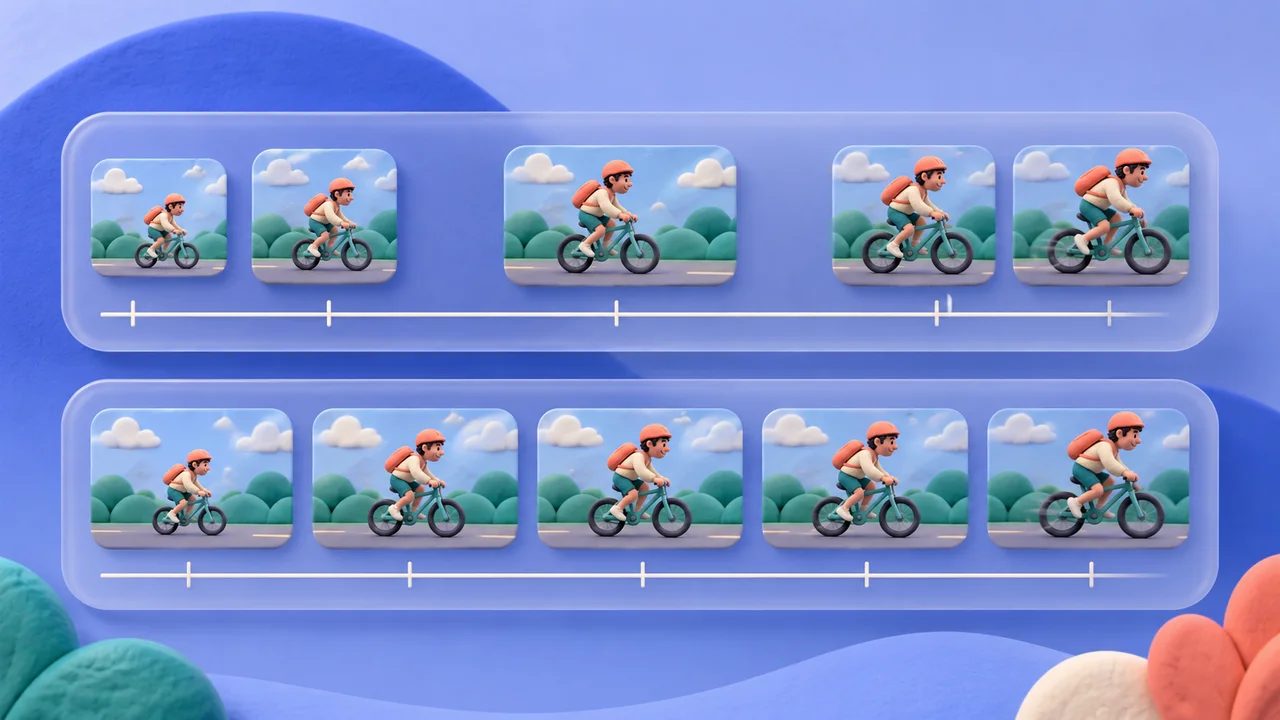
Many phone videos don't have one fixed frame rate. A clip labelled 30 fps may slow down in a dim room and speed up again outside, because the phone times each frame as it goes. That's variable frame rate (VFR). Players handle it without fuss, but some editors assume every frame lasts exactly the same time, which shows up as sound drifting out of sync, stutter, or clips that won't line up. Converting the clip to a constant frame rate (CFR) before you edit fixes it.
What variable frame rate means
A video is a series of still frames, each stamped with the time it should appear. At a constant 30 fps, the stamps are evenly spaced, 1/30 of a second apart. In a variable clip, the gaps change as it goes. Here's an illustration:
| Frame | Constant 30 fps | Variable "30 fps" |
|---|---|---|
| 1 | 0.000 s | 0.000 s |
| 2 | 0.033 s | 0.033 s |
| 3 | 0.067 s | 0.075 s |
| 4 | 0.100 s | 0.117 s |
| 5 | 0.133 s | 0.150 s |
Both are valid. A player reads each stamp and shows the frame at that moment, so the variable clip looks normal.
Why phones and screen recorders do it
- Low light. A camera can't expose a frame for longer than the gap between frames. In the dark, stretching that gap lets in more light. iPhones can do this on purpose: Auto FPS in Settings › Camera › Record Video (Auto Low Light FPS on some models) drops the rate to 24 fps in low light.
- A busy phone. Stabilisation and image processing take up the phone's attention, heat can slow it down, and a frame can land late.
- Screen recording. Many screen recorders, in phones and in browsers, save a new frame only when something on screen changes. A still slide may produce hardly any frames, then a burst when you scroll.
Why editors get confused
Here's the arithmetic. Suppose a 60-second clip averages 29.5 fps, so it holds 1,770 frames. An editor that treats it as exactly 30 fps gives each frame 1/30 of a second, so the pictures last 1,770 ÷ 30 = 59 seconds. The sound still lasts 60. By the end, picture and sound are a full second apart.
Many current editors read the timestamps and cope far better than that, but results vary by app and version. Even a careful editor has to fit uneven frames onto a timeline with fixed steps, so some get repeated or dropped.
The typical symptoms:
- Lip sync is fine at the start of a clip and gets steadily worse.
- Motion stutters after import or export, often in the dim parts.
- A clip's length differs between your editor and your player.
- A second camera, or sound recorded separately, won't stay lined up.
A sudden jump at one point is usually something else. Why audio goes out of sync when you merge videos goes through the other causes.
When you can ignore it
You don't need to do anything if you're just watching a clip, sending it to someone, or uploading it to YouTube, Instagram or TikTok, which all re-encode what you send them. Short clips rarely show a problem either, since drift builds up with length: at the rate above, a 10-second clip would be off by about a sixth of a second.
It's worth fixing when you're:
- editing long clips in a desktop editor
- lining up several cameras, or sound from a separate recorder
- joining clips without re-encoding, as with FFmpeg's concat method
- doing frame-accurate work, such as effects or motion tracking
How to check a clip
With MediaInfo
MediaInfo is free for Windows, Mac and Linux. Open the clip and switch the view to Text or Tree. In the Video section, Frame rate mode says Constant or Variable. A variable clip usually also lists Minimum frame rate and Maximum frame rate.
Look at those two figures, because the label alone can overstate the problem. A clip that runs between 29.9 and 30.1 fps is marked Variable, but it's unlikely to cause trouble. One that runs from 15 to 30 fps probably will.
With FFmpeg
ffmpeg -i input.mp4 -vf vfrdet -an -f null -
This decodes the whole clip, so it takes a while on long ones. The result is the last line that mentions VFR:
[Parsed_vfrdet_0 @ 0x7b50470c0] VFR:0.010101 (1/98) min: 512 max: 1536 avg: 1536
VFR:0.000000 means every frame lasted the same time, and anything above zero means some didn't. Ignore any earlier line reading VFR:nan (0/0). A small figure doesn't always mean a small problem, because it counts how often the timing changes, not by how much. min and max are the shortest and longest frame times, in the file's own units, so here the longest frame lasts three times as long as the shortest.
How to convert to a constant frame rate
Choose the rate your phone was set to, which is usually 30 or 60 (or 24 or 25 if you picked those), and make it match your editing project. A higher rate won't add smoothness: the conversion only repeats or drops frames to fill the timeline, so a dim stretch with few frames still looks like one.
Converting means re-encoding, so use a high quality setting and keep your originals.
With HandBrake (free, Windows, Mac and Linux)
- Choose Open Source and pick the clip.
- Choose a preset that suits it, such as Fast 1080p30 for a 1080p clip.
- On the Video tab, set Framerate (FPS) to the rate you want, then choose Constant Framerate. This is the step that matters: HandBrake's built-in presets use Peak Framerate, which leaves the frame rate variable below a ceiling.
- For footage you'll edit, move the Constant Quality slider to around RF 18.
- Choose where to save the file, then press Start Encode (Start on a Mac).
With FFmpeg
ffmpeg -i input.mov -vf fps=30 -c:v libx264 -crf 18 -preset medium -pix_fmt yuv420p -c:a aac -b:a 192k output.mp4
fps=30makes one frame every 1/30 of a second, using each frame's timestamp to decide which to repeat or drop, so the picture stays with the sound.-crf 18keeps quality high, since the file will be encoded again when you export your edit.-pix_fmt yuv420pkeeps the standard 8-bit colour format. HDR phone clips can look flat after this, so check one first.
On FFmpeg 5.1 or later, -fps_mode cfr -r 30 in place of -vf fps=30 gives the same result. Run the vfrdet check on the new file and it should now say VFR:0.000000.
To convert a whole folder on a Mac or Linux:
for f in *.MOV; do ffmpeg -i "$f" -vf fps=30 -c:v libx264 -crf 18 -preset medium -pix_fmt yuv420p -c:a aac -b:a 192k "cfr_${f%.*}.mp4"; done
And in Windows Command Prompt (use %%f and %%~nf in a .bat file):
for %f in (*.MOV) do ffmpeg -i "%f" -vf fps=30 -c:v libx264 -crf 18 -preset medium -pix_fmt yuv420p -c:a aac -b:a 192k "cfr_%~nf.mp4"
If you're only joining clips
A joining tool that re-encodes doesn't need every clip to match. ClipMerge, for example, re-encodes everything it joins, and the whole video takes its frame rate from the first clip. If you need one exact, constant rate for an editor that's fussy about it, convert the clips with one of the methods above first. For clips that were shot at different rates on purpose, see merging videos with different frame rates.
Can you stop your phone recording VFR?
Usually not completely, but you can make it steadier:
- Give it plenty of light. It's the biggest single cause, and more light also means a cleaner picture.
- Turn off the low-light frame rate setting, such as Auto FPS on an iPhone, before filming anything you plan to edit.
- Stick to one frame rate for the whole shoot. Frame rates explained helps you pick.
- Try a manual camera app. Some third-party apps offer a locked frame rate, though what you get varies by app and phone, so test a clip with MediaInfo before relying on it.