WebM is an open, royalty-free video format that Google launched in 2010 for video on the web. A .webm file is a container (a simplified version of Matroska, the format behind MKV) holding VP8, VP9 or AV1 video with Opus or Vorbis sound. You'll usually meet it when something was recorded in a browser or saved from a website. Chrome, Firefox and Edge play it on any computer, and Android phones handle it well; Apple's apps are where it tends to fail, and converting it to MP4 fixes that.
Where WebM files come from
- Browser recordings. Web-based screen recorders, webcam and voice-message tools, and other sites that record in your browser often save WebM, because that's what Chrome's and Firefox's built-in recording feature produces by default.
- Video sites. YouTube streams most videos as VP9 or AV1, so tools that save YouTube videos often give you WebM.
- Short loops on websites, used in place of animated GIFs, because they're far smaller.
If you made the file yourself in a browser, it's almost certainly WebM even when the site didn't say so.
What's inside
| Part | Codec | Notes |
|---|---|---|
| Video | VP8 | The original WebM codec from 2010; less efficient, still used by some recorders |
| Video | VP9 | From 2013; roughly comparable to HEVC, and YouTube's workhorse for years |
| Video | AV1 | From 2018; the most efficient of the three |
| Sound | Vorbis | The older option |
| Sound | Opus | Newer and very good at low bitrates; also the standard for voice in browser calls |
VP8 came from On2 Technologies, a company Google bought in 2010. Google developed VP9 from it, and AV1 builds on VP9. How these compare with H.264 and HEVC is covered in H.264 vs H.265 vs AV1.
How to play a WebM file
On Windows: drag the file into a Chrome, Edge or Firefox window, or open it in VLC.
On a Mac: QuickTime Player can't open WebM. Drag the file into a Chrome or Firefox window, or use VLC or IINA (both free). Recent versions of Safari play many WebM files too, depending on the codec and your macOS version.
On an iPhone or iPad: the Photos app won't take a WebM, so you generally can't save one to your camera roll as it is. VLC from the App Store plays it. For anything you want in Photos, or to send to other iPhone users, convert it to MP4.
On Android: most phones play WebM in their gallery app and in Chrome.
In editors: iMovie won't import WebM, and support in other editors is mixed. Converting to MP4 first saves trouble.
Converting WebM to MP4
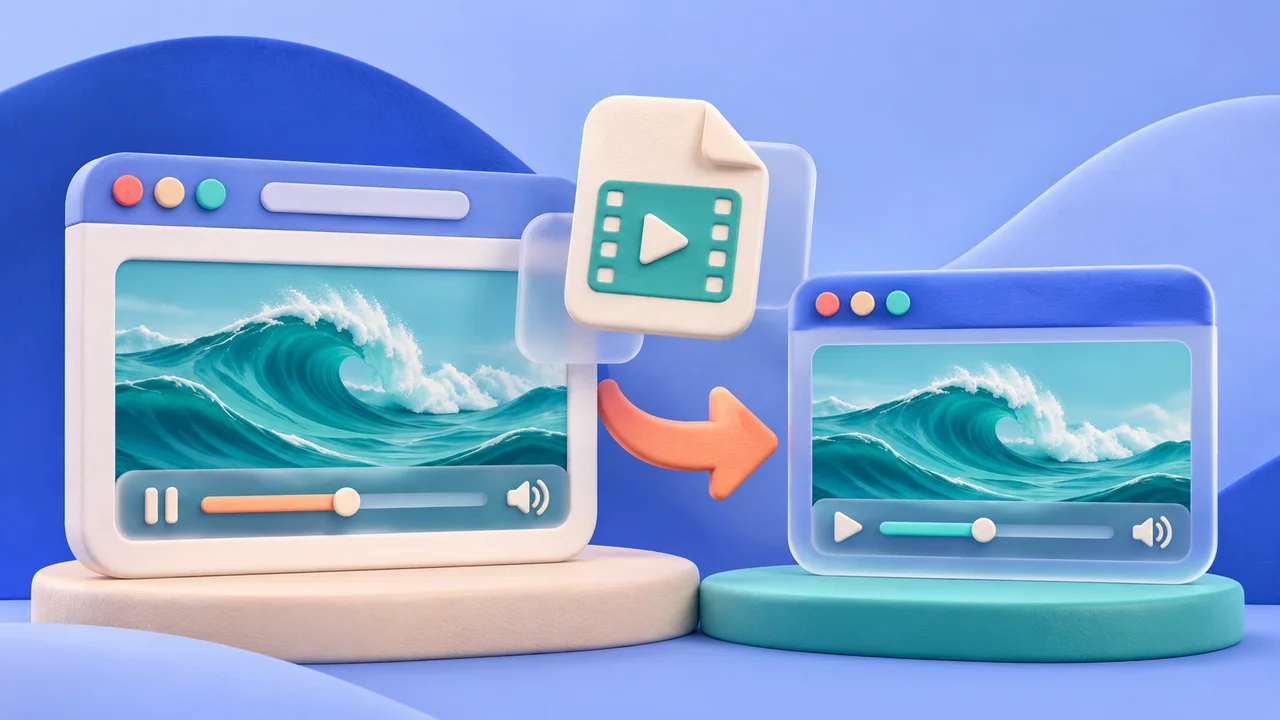
MP4 can technically hold VP9 and AV1 video with Opus sound, and FFmpeg will make such a file, but many players, including Apple's, won't play it. For a file that works everywhere, re-encode to H.264 video with AAC sound.
With HandBrake (free, Windows, Mac and Linux)
- Open HandBrake, choose Open Source and pick the WebM file.
- Choose the Fast 1080p30 preset. It makes an H.264 MP4 with AAC sound.
- For a browser recording, go to the Video tab, set Framerate to 30 and choose Constant Framerate. Browser recordings often have an uneven frame rate, which editors handle badly.
- Choose where to save the file at the bottom, then press Start Encode (Start on a Mac).
With FFmpeg
ffmpeg -i input.webm -c:v libx264 -crf 20 -preset medium -pix_fmt yuv420p -c:a aac -b:a 160k -movflags +faststart output.mp4
For browser screen recordings, this version is safer:
ffmpeg -i input.webm -vf "fps=30,crop=trunc(iw/2)*2:trunc(ih/2)*2" -c:v libx264 -crf 20 -preset medium -pix_fmt yuv420p -c:a aac -b:a 160k -movflags +faststart output.mp4
It fixes the two problems browser recordings most often cause:
- "width not divisible by 2" (or height). A recording of a browser window or a single tab can be any size, such as 1279×719, but H.264 in its usual colour format needs even numbers. The
croppart trims one pixel off an odd edge. - An uneven frame rate.
fps=30turns it into a steady 30 frames per second. Our guide to variable frame rate explains why that matters for editing.
If you can't skip through the video
WebM files recorded in a browser are often saved without a duration or the index players use for seeking. The player shows no length, or won't let you jump ahead. Converting to MP4 fixes this. To keep the WebM, rewrite it without re-encoding, which adds the missing information:
ffmpeg -i input.webm -c copy fixed.webm
Joining several recordings
If you have a handful of browser recordings to put together, ClipMerge reads WebM files and saves the joined result as one MP4, which in almost every browser is H.264 with AAC sound. The first clip sets the shape of the video, so start with your main recording.
Making a WebM yourself
WebM is a good choice for video on your own website, especially VP9 or AV1, which are smaller than H.264 at the same quality. A VP9 WebM with FFmpeg:
ffmpeg -i input.mp4 -c:v libvpx-vp9 -crf 31 -b:v 0 -row-mt 1 -c:a libopus -b:a 128k output.webm
-crf 31with-b:v 0tells the VP9 encoder to aim for a quality level rather than a bitrate. Lower numbers mean better quality and bigger files.-row-mt 1lets it use more of your processor's cores, which speeds things up.- VP9 encoding is slow. Expect it to take several times longer than H.264.
Offer an MP4 alongside it, so every browser has something it can play. In your page's HTML, list the WebM first and the MP4 second; each browser picks the first one it supports:
<video controls>
  <source src="clip.webm" type="video/webm">
  <source src="clip.mp4" type="video/mp4">
</video>
For a file you're sending to a person rather than putting on a web page, MP4 is still the better choice. If you've also got MKV files to deal with, what is an MKV file covers those, and recording your screen on any device explains which recorders save which format.