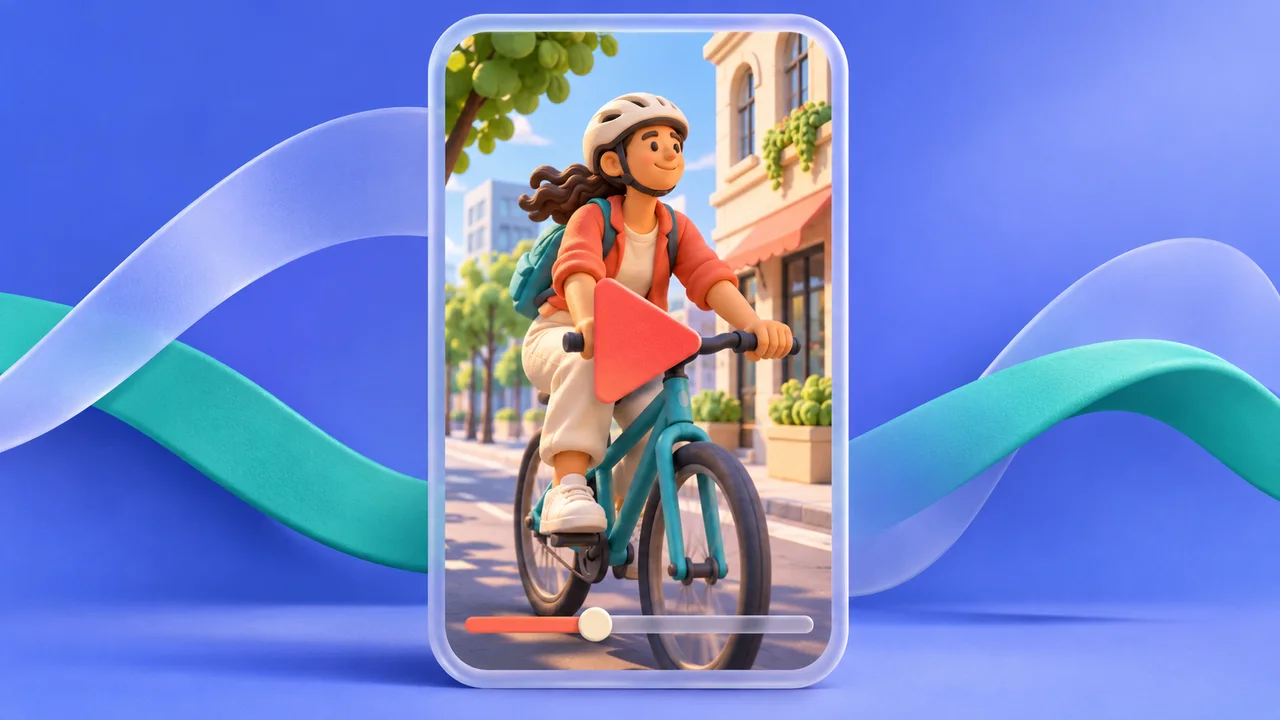
A YouTube Short is any video with a square or vertical shape that's up to 3 minutes long. There's no special file type or upload button you have to use: upload an MP4 at 1080×1920 (vertical) or 1080×1080 (square), and YouTube treats it as a Short automatically. The 3-minute limit applies to videos uploaded after October 15, 2024; before then, Shorts could be up to 60 seconds.
What makes a video a Short
YouTube looks at two things: shape and length.
| Your video | Square or vertical | Landscape (such as 16:9) |
|---|---|---|
| Up to 3 minutes | Short | Regular video |
| Longer than 3 minutes | Regular video | Regular video |
A few details that catch people out:
- The shape is the file's shape, not what's in it. A vertical clip exported inside a 16:9 frame with black bars on each side is a landscape video as far as YouTube is concerned, so it won't become a Short.
- Older uploads don't change. Videos between 1 and 3 minutes uploaded before October 15, 2024 stayed as regular videos.
- You can't opt out by ticking a box. According to YouTube's help page on three-minute Shorts, the way to keep a short video out of Shorts is to make it a wider shape, such as 16:9.
- You don't need #Shorts in the title. The shape and length decide.
- Cutting it close? Aim for a second or two under 3 minutes rather than exactly on it.
These rules are current at the time of writing. YouTube changes Shorts more often than regular uploads, so check YouTube Help if something doesn't behave as described.
The best size and settings
| Use | |
|---|---|
| Shape | 9:16 vertical (fills the screen) or 1:1 square |
| Size | 1080×1920 for vertical, 1080×1080 for square. 2160×3840 (vertical 4K) also works |
| File type | MP4 with H.264 video and AAC sound, or your phone's own format |
| Frame rate | Whatever you filmed: 24, 30 or 60 fps |
Vertical or square? Vertical fills a phone screen, which is how most Shorts are watched. Square works, but it shows with empty space above and below. Pick square only if the same file also has to work somewhere square suits better.
Shapes in between, such as 4:5, are taller than they are wide, so they count as vertical, but they don't fill the screen either. For the upload settings that apply to all YouTube videos, see the best video format for YouTube.
What 3 minutes means in practice
The longer limit came with a catch for music and other copyrighted material. YouTube's help page says that a Short longer than 1 minute with an active Content ID claim (YouTube's automatic copyright matching) is blocked worldwide: it can't be watched or recommended. Shorts under a minute aren't affected by that rule.
So:
- If your Short uses a commercial song or a clip from a film or TV show, keep it under 1 minute.
- If it needs to be longer, use music you have the rights to, such as tracks from the YouTube Audio Library, or no music.
- If a longer Short is blocked, you can remove the claimed material or dispute the claim, and it becomes watchable again once the claim is resolved.
Length is also a creative choice, not just a rule. Three minutes is a lot of vertical video. Many ideas land in 20 to 60 seconds; use the extra time when the content needs it, such as a recipe or a how-to, rather than by default.
How to upload a Short
From a computer
- Open YouTube Studio and choose Create › Upload videos.
- Select your file. Any square or vertical video of up to 3 minutes is classified as a Short.
- Fill in the title and details, choose who can see it, and publish.
You can select several files at once, but you'll need to finish each one's details before it's published.
From your phone
In the YouTube app, tap the + (Create) button and choose Short. From there you can record, or choose a video from your phone's gallery. The layout changes between app versions, but the shape-and-length rule is the same either way.
Making a Short from several clips
Most Shorts are a few clips joined together. The order of work that avoids problems:
- Film vertically, in short takes.
- Trim each clip to the part that matters, in your phone's Photos or Gallery app or an editor.
- Join them into one vertical file.
- Upload, and add music in YouTube's Shorts editor if you want it (with the 1-minute rule above in mind).
For step 3, any editor works. A browser tool like ClipMerge joins clips and photos in the order you drag them into a single MP4. It takes its shape from the first clip, so start with a vertical one and the whole video stays vertical; landscape clips later on get black bars rather than being stretched. Without an account you can join up to 4 clips of up to 30 seconds each, and a free account allows 16 clips of up to 60 seconds. A free account covers a full 3-minute Short. The watermark is optional.
If you're turning a landscape video into a Short, it has to be cropped or fitted into a vertical frame first. The FFmpeg commands in our TikTok format guide work just as well for Shorts, and aspect ratios explained covers the shapes in more depth.
Tips for Shorts that look right
- Keep text away from the edges. The Shorts player puts the title, channel name and subscribe button along the bottom, and the like, comment and share buttons down the right side. Keep words and faces in the centre.
- Plan for the loop. Shorts replay automatically. An ending that leads naturally back into the first frame keeps people watching.
- Link to your longer videos. YouTube lets you link a Short to another of your public or unlisted videos, which appears as a link under your channel name. In YouTube Studio, open Content, choose the Short and pick a Related video. At the time of writing it needs YouTube's advanced features turned on for your channel.
- Upload the original file. A copy that's been through a messaging app is already compressed, and YouTube compresses again.
Common problems
It uploaded as a regular video. It's either over 3 minutes or not square or vertical. Check for black bars that make the file landscape, and check the length to the second.
My Short is blocked. It's over a minute and has a copyright claim. Shorten it to under a minute, swap the music, or resolve the claim in YouTube Studio.
It looks blurry at first. Higher-quality versions take a little longer to process after upload. Check again later before re-uploading.
There are black bars above and below. The video is square or landscape-ish rather than 9:16. Re-export it at 1080×1920 to fill the screen.