A highlight video is the best few minutes of an event, not a summary of all of it. Pick the 10 to 30 moments that matter, cut each one down to 3 to 8 seconds, put them in an order that opens strong and ends like an ending, and keep the whole thing to between 30 seconds and 3 minutes for most audiences.
Know which moments you're looking for
Highlights are easier to film, and much easier to find afterwards, when you know the list before the event starts.
Weddings
- details while getting ready: the dress, the rings, the shoes
- the walk down the aisle, and the partner's face watching it
- one line of the vows, not all of them
- the ring exchange, the kiss and the exit (confetti, bubbles, applause)
- the biggest laugh in each speech
- the start of the first dance, and one spin
- the dance floor at its fullest, the cake cut and the send-off
Sports matches
- every goal, point or try, starting 3 to 5 seconds before it, with the build-up
- saves, near misses and the best tackle
- celebrations, on the pitch and on the sideline
- the warm-up or team huddle, the scoreboard, the final whistle and the handshakes
If the reel is for a coach or a scout, the rules change: best plays first, no chronology, and make it obvious which player is yours. Start with an image showing their name, shirt number and team colours.
School concerts, plays and sports days
- the setting: the hall filling up, the stage, the track
- your child's moment: the solo line, the race, the bow
- the best 10 seconds of the group performance
- applause, and a shot with friends afterwards
Other children will be in your footage. Many schools have rules about posting it, so check before sharing anything publicly, and keep it to family otherwise.
While filming: make the edit easier
- Film moments, not the whole event. On a phone, start recording when something might happen and stop after it does. A pile of 30-second clips is far quicker to sort than a two-hour recording.
- If you must record continuously, for example on a tripod for a whole match or ceremony, note the time of each key moment as it happens: a quick note on your phone ("23:40 goal, number 9") saves an hour of scrubbing later.
- Stay steady. Lean on a railing or use a tripod or monopod, and stay on the main lens. Our tips on filming better videos with your phone cover the rest.
- Collect other people's footage properly. Ask for the original files through a shared album or a file link, not a messaging app, which shrinks them. Their phones may record at different frame rates (25, 30 or 60 fps); merging videos with different frame rates explains what happens when you mix them.
Cut long recordings into moments
Each highlight should be its own short clip before you join anything.
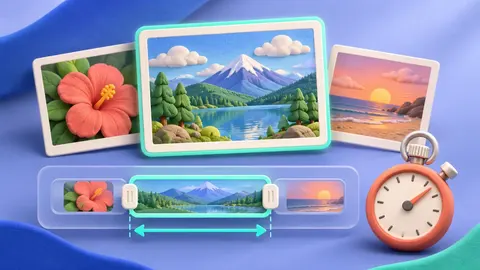
Phone clips: trim them in the Photos app. On an iPhone, open the clip, tap Edit, drag the ends of the strip to the moment, tap Done, then choose Save Video as New Clip to keep the original too. Google Photos and most Android gallery apps have the same handles under Edit.
Long camera or tripod recordings: FFmpeg can cut out a moment without opening an editor. This takes 8 seconds starting at 23 minutes 35 seconds:
ffmpeg -ss 00:23:35 -i match.mp4 -t 8 -c copy goal-1.mp4
-ss is the start time, -t is the length, and -c copy copies the video without re-encoding, so it's instant and loses nothing. The catch is that it can only start cleanly on a keyframe (a complete frame, which most videos store every second or two), so the clip may begin slightly early or with a moment of frozen picture. For a frame-accurate cut, re-encode instead:
ffmpeg -ss 00:23:35 -i match.mp4 -t 8 -c:v libx264 -crf 18 -preset medium -c:a aac -b:a 192k goal-1.mp4
This is slower but starts exactly where you asked. -crf 18 keeps the quality high. Our guide to merging videos with FFmpeg covers joining the cuts on the command line too.
Choose, then order
Watch everything once without stopping, and mark every moment that made you react (the favourite button in your Photos app works). Then cut down to the length you need:
| Where it's going | Length | Moments |
|---|---|---|
| A social post | 30 to 60 seconds | 8 to 15 |
| The team or family group | 1 to 3 minutes | 15 to 35 |
| A wedding highlight film | Often 3 to 5 minutes | 30 to 60 |
Clip lengths: 3 to 8 seconds for most moments. Action needs its lead-up, so start 2 to 3 seconds before the goal or the jump and end 1 to 2 seconds after. Emotional moments, a line of the vows or a long hug, can run 10 to 15 seconds.
Order:
- Weddings and school events: chronological. The day already has a story, from arrival to send-off.
- Matches: chronological too, so the score makes sense, but open with a 3-second flash of the best moment and finish on the final whistle or the celebration.
- Recruiting reels: best first, regardless of when it happened.
Openers and closers: a title image (the event, the date, the names) and a closing image. Make them the same size as your clips, such as 1920×1080 for landscape 1080p video.
Join the clips
With ClipMerge, drop the trimmed clips and the title images onto the page, drag them into order and press Merge clips. Phone clips, action camera files and camcorder footage can go in the same video. Some rules to know:
- The first clip sets the shape and the frame rate, so start with a landscape clip or title image for a landscape video. Vertical clips after it get black bars.
- Each clip keeps its own sound, so the cheers, the vows and the final whistle all come through. A clip filmed from the back of the hall will be quieter than one from the front row.
- Without an account it takes 4 clips of up to 30 seconds; a free account takes 16 clips of up to a minute. A 25-moment highlight video needs ClipMerge Pro, which takes any number of clips and offers one-time passes starting at 15 days.
A straight cut works well for fast action. For a change of scene, try a crossfade in ClipMerge. For slow-motion replays, use an editor such as CapCut, iMovie or DaVinci Resolve. For a wedding, the wedding slideshow template adds title cards, soft fades and a song, with your clips and photos in one frame. The event’s own sound can carry a highlight, especially when a crowd goes quiet before a penalty.
Share it
- Messaging apps compress video heavily. For a version worth keeping, send a link to the file in Google Drive, iCloud or Dropbox, or use AirDrop or Quick Share in person. How to send a large video file compares the options.
- YouTube's Unlisted setting is handy for a team or a family: only people with the link can find the video.
- Posting with music: commercial songs can get a video muted or blocked. Instagram and TikTok let you add a sound from their own libraries when you post.
- Children in the video: share privately unless every parent has agreed, and follow the school's or club's rules.