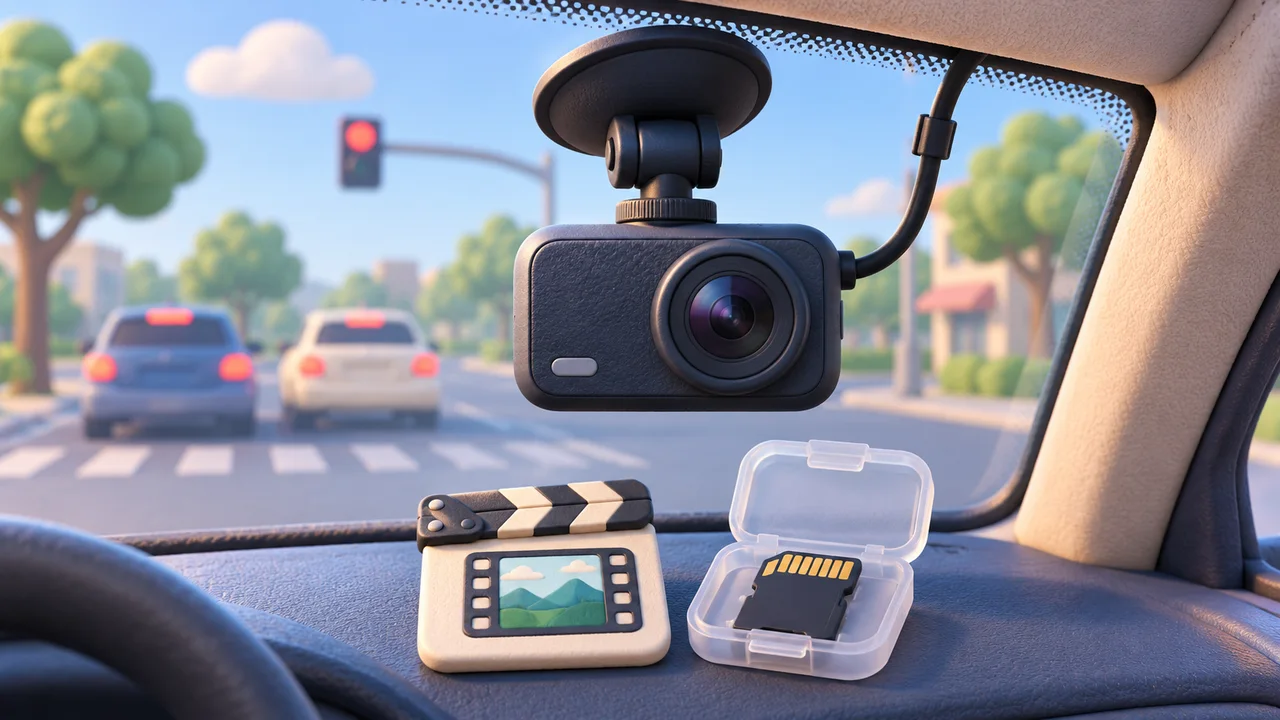
Dashcams record in a loop and delete the oldest clips when the card fills up, so the first job after an accident is to protect the footage: press the camera's lock or event button, or switch it off and take the card out once it's safe to. Then copy the whole card to a computer, leave those copies untouched, and make a separate, easy-to-watch video of the minutes that matter for anyone who asks. Deal with the camera only after everyone is safe and you've done what's required at the scene.
Step 1: stop the camera recording over it
Loop recording means the camera saves the drive as a string of short clips, usually 1, 3 or 5 minutes each, and deletes the oldest ones when the card is full. On a small card, that can mean footage from earlier the same day is already gone.
Most dashcams protect clips in two ways:
- Automatically, with a G-sensor (an impact sensor). A hard knock locks the current clip so the loop can't delete it.
- Manually, with a lock, event or emergency button, often marked with a lock or warning-triangle icon. Press it even if you think the sensor caught the impact, since a low-speed bump may not trigger it.
Locked clips usually go into a separate folder, with a name like Event, Locked or RO (read-only), or get a letter in the file name. The details vary by brand.
Locking isn't permanent protection on every camera. Some keep only a limited amount of locked footage and start replacing the oldest locked clips when that space is full. And if the camera has parking mode (it keeps recording when the car is parked), it carries on filling the card.
So as soon as you reasonably can:
- Switch the camera off first, or unplug it, and wait a moment. Pulling the card while it's writing can damage the clip being recorded.
- Take out the card and keep it somewhere safe.
- If you need the dashcam running for the rest of the journey, use a spare card.
Many dashcams have a phone app that can download clips over Wi-Fi. That's a handy quick copy, but depending on the model the app version may be smaller or lower quality. Treat the card as the master copy.
Step 2: copy the card before you do anything else
- Put the card in a card reader. If it's a microSD card in a full-size SD adapter, slide the adapter's lock switch down first. Most readers then treat the card as read-only, so nothing on the computer can change it.
- Copy the whole card, every folder, into a new folder with a clear name such as
2026-11-03 dashcam card, original. Copy rather than move. - Make a second copy somewhere else: an external drive or a cloud folder.
- Check the copies play, especially the clips around the accident.
- Don't format the card or put it back in the camera until you're sure you won't need it.
Then leave those copies alone. Don't rename, trim, convert or re-save the original files. The camera's own files, with their names, sizes and dates, are the closest thing you have to the raw recording, and anyone who looks at the footage closely may ask for them.
Step 3: find the clips that matter
- Use the file names. Most dashcams name files by date and time, for example something like
20261103_143512_F.MP4, and they sort into order on their own. Check the event or locked folder as well as the normal one. - Front and rear cameras save separate files, often marked F and R, or kept in separate folders.
- Check the camera's clock. If it was never set, or didn't change for daylight saving, the times in the names and on the picture will be off. Work out the difference and write it down, so you can explain it.
- Take more than the moment of impact. The clip before shows the lead-up, and the clip after shows what happened next. Include at least one clip either side, more if the lead-up matters.
GPS and speed. If your camera prints the date, time and speed on the picture, they're part of the video and survive any copy. If they only appear in the maker's own viewer app, they're stored as extra data in the file, which most converters and editors drop. Keep the originals and use the maker's app to show that information.
Step 4: make one video that's easy to watch
The moment you need is often split across two or three loop clips. Twenty short files are hard for anyone to follow, so join the relevant ones into one video in the right order, and keep that separate from the originals: it's a working copy for viewing.
Keep it plain. No filters, music, slow motion or cuts in the middle: anything that changes what happened makes it less useful. A clear file name helps, such as 2026-11-03 front camera 14.33 to 14.39 (joined copy).mp4.
Join without re-encoding, with FFmpeg
Clips from one dashcam share the same settings, so FFmpeg can join them without re-encoding. The video stays exactly as the camera recorded it, just in one file. Copy the clips you want into a folder, list them in order in a text file called list.txt:
file '20261103_143212_F.MP4'
file '20261103_143512_F.MP4'
file '20261103_143812_F.MP4'
Then run:
ffmpeg -f concat -safe 0 -i list.txt -c copy joined-front.mp4
If your camera saves .TS or .MOV files, use those names, and give the output the same extension as the clips (for example joined-front.ts) if MP4 gives an error. Our guide to merging videos with FFmpeg explains the common errors.
Join in a browser
ClipMerge's dashcam page takes MP4, MOV, TS and AVI clips: drop them in, check the order and download one MP4. It re-encodes the video, so the result is a new copy, not the camera's file, which is one more reason to keep the originals. Anything printed on the picture, such as the time and speed, stays; GPS data stored in the files doesn't. A free account takes clips of up to 60 seconds, so 3- and 5-minute loop clips need a Pro pass. It plays clips one after another rather than side by side, so make one video for the front camera and another for the rear.
Step 5: share it with the people who need it
Rules differ between countries, states and insurers, so take this as general guidance rather than advice for your situation.
- Your insurer: ask how they want to receive footage. Some have an upload page, and some accept a cloud link. Offer the joined copy for convenience, and say the original files are available.
- The police: if the accident has been reported, ask whether they want footage and how to send it. In some areas there's an online form for submitting dashcam video.
- Posting online: it's wise to wait until you've spoken to your insurer, and to check local rules first. Laws on recording and publishing footage of other people, number plates and in-car conversations vary a lot from place to place.
- Keep a note of what you sent, to whom and when.
Getting the file to them. Dashcam clips are usually too big for email. Share a link from Google Drive, OneDrive, iCloud Drive or Dropbox instead; our guide to sending a large video file covers the options. Avoid sending footage through messaging apps that compress video, because the detail that matters, such as a number plate, is the first thing to blur.
Common problems
The clip isn't on the card. Check the event or locked folder, then the phone app and any cloud service the camera uploads to. If it has been deleted, stop using the card straight away: free recovery tools such as PhotoRec can sometimes get deleted files back, but only until something new is written over them.
The last clip is very short or won't play. Cameras often lose power in a crash, which can leave the last file unfinished. Try VLC, which plays many damaged files, and the dashcam maker's own player.
The files won't play on a phone or in an email preview. Some dashcams save TS, AVI or MOV files that phones don't handle. VLC plays them, and joining them into an MP4 gives a file almost anything can open.